Getting started with Simplin
This guide shows you every screen and exactly where to click — just follow the red marks. Most owners get their first employee clocked in within 15 minutes.
1. Sign in to your dashboard
- 1
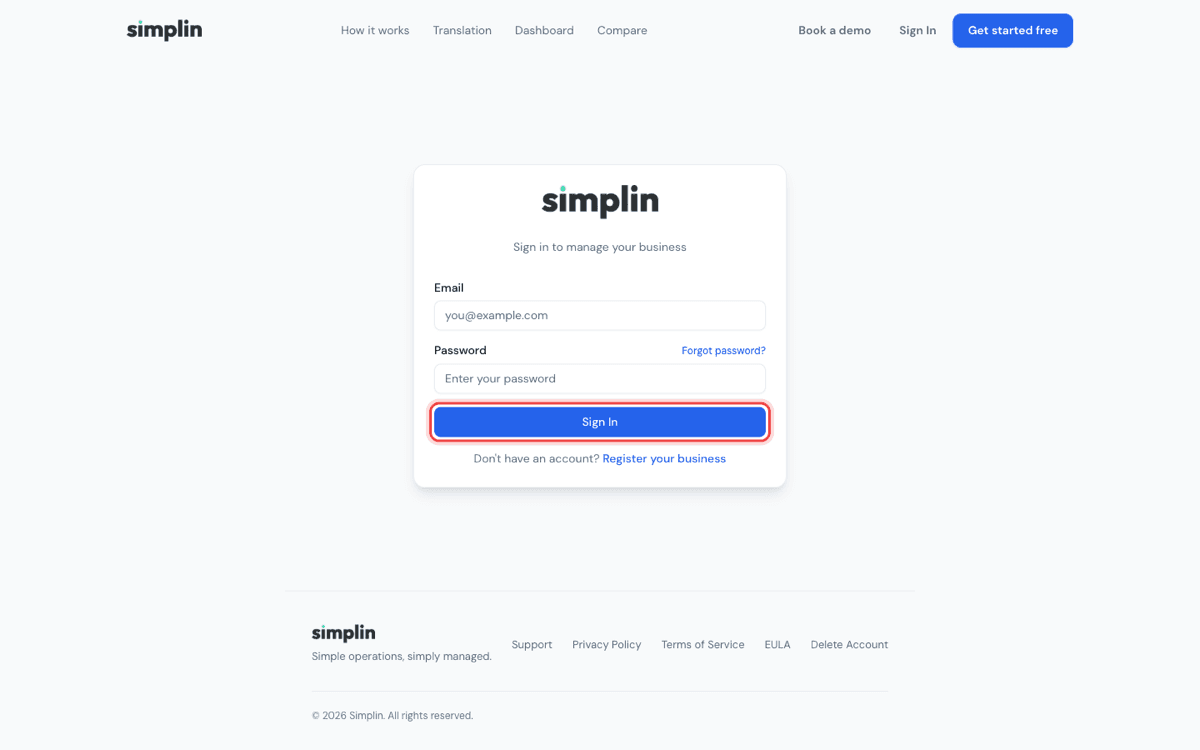
On your computer, go to simplin.ai and click Sign In at the top right.
- 2
Enter the email and password you signed up with, then click the blue Sign In button.
2. Check your store address
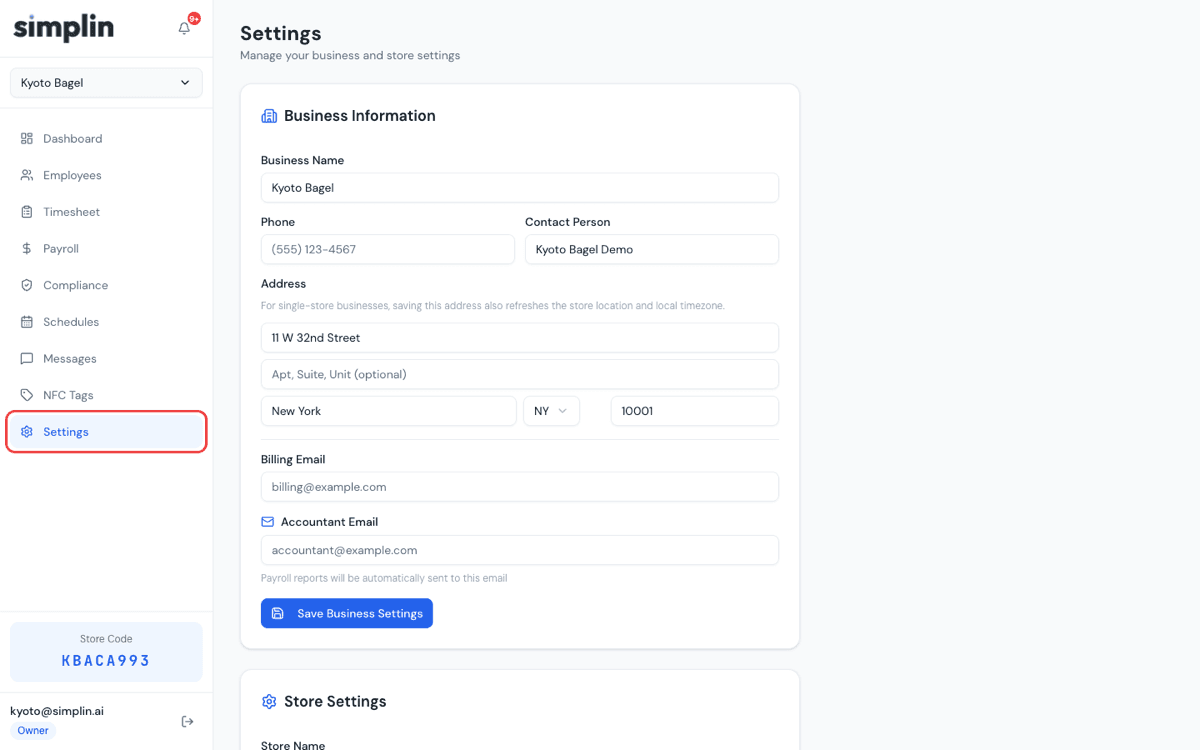
The address from sign-up is what Simplin uses to verify clock-ins — employees need to be near your store (about 50m by default) to clock in. Check it once before you start.
- 1
Click Settings at the bottom of the left menu and make sure the store address is right. Fix and save it here if it isn't.
3. Add an employee
- 1
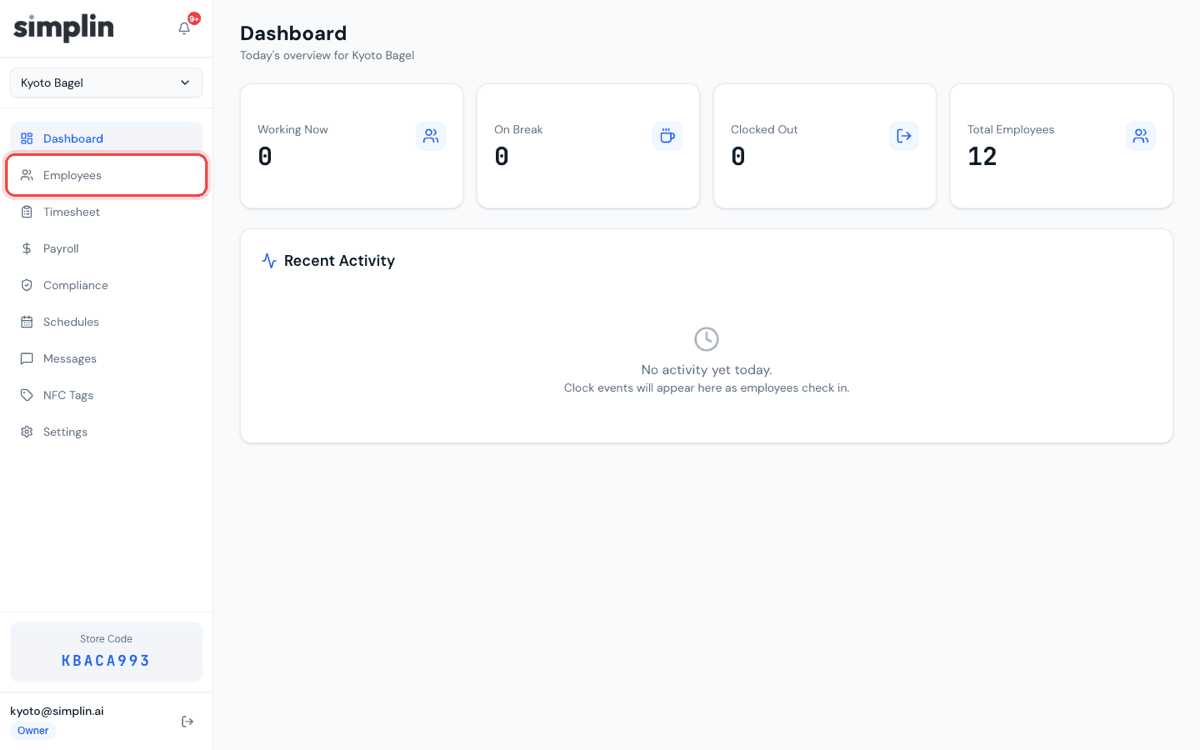
Click Employees in the left menu.
- 2
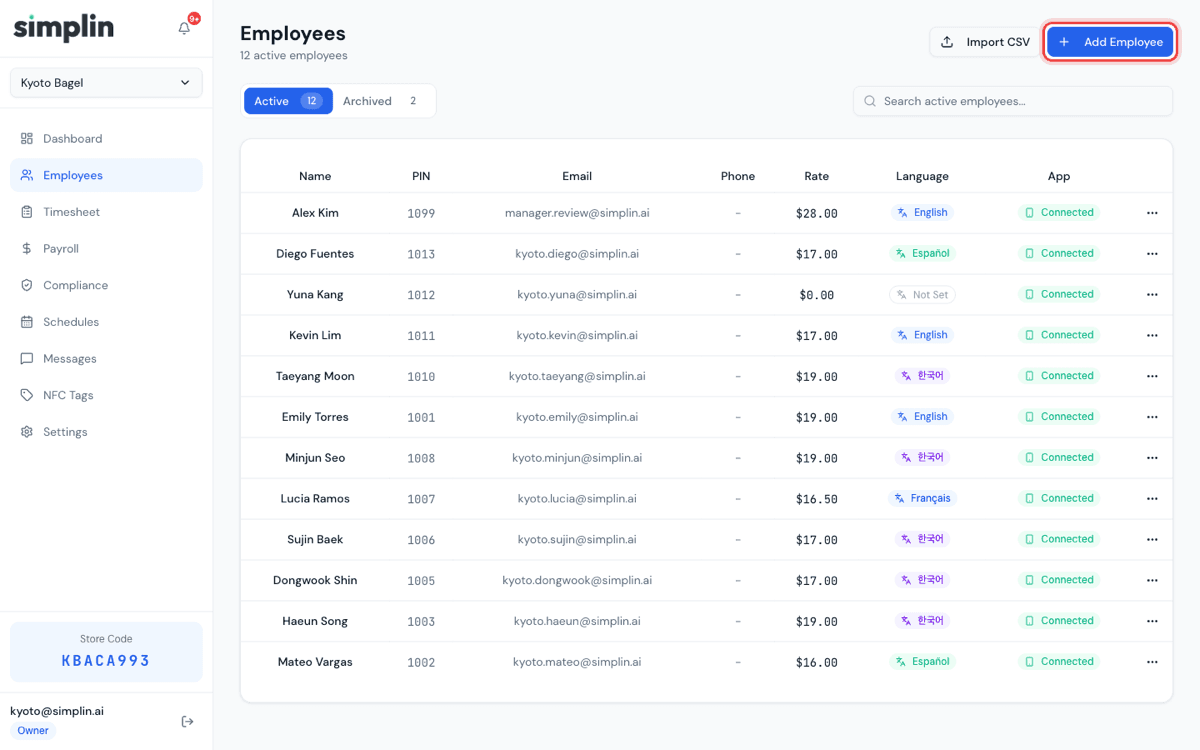
Click the blue + Add Employee button at the top right.
- 3
Type the employee's first name, last name, and email. The email matters most — the invite is tied to it, and the app account gets created with it. Add the pay rate too so payroll works right away.
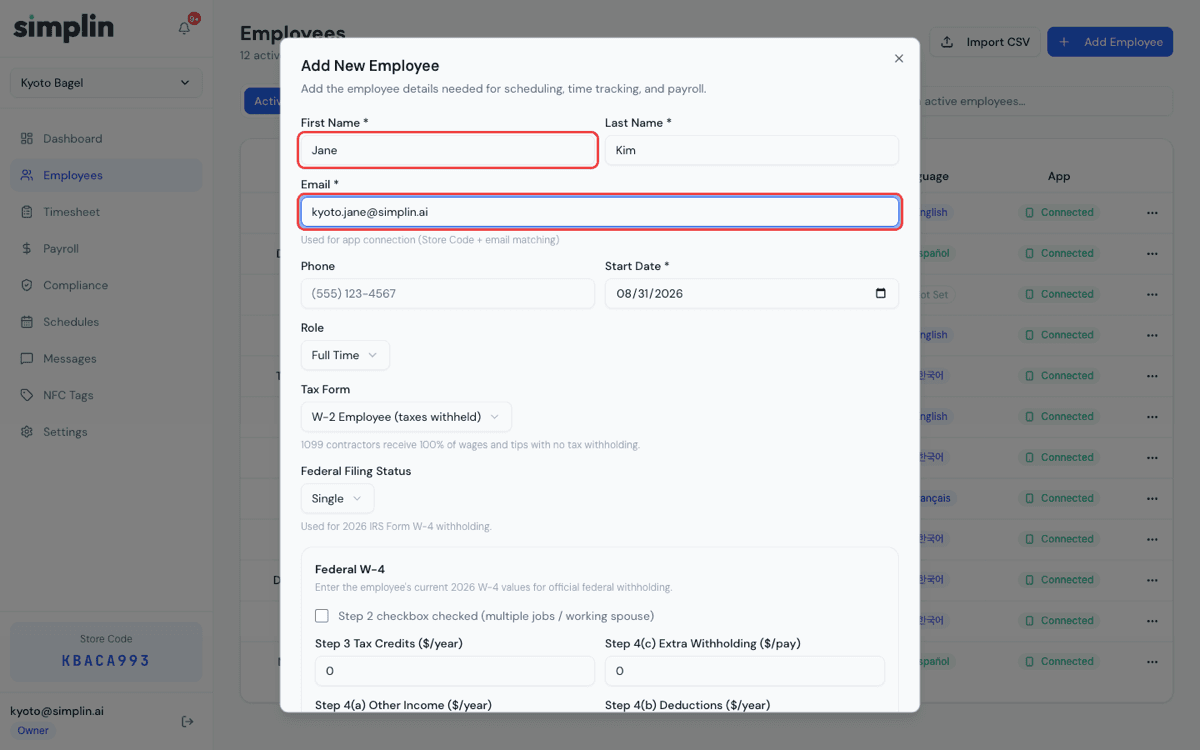
- 4
Scroll to the bottom of the window and click the blue Add Employee button. Done — a clock-in PIN is generated automatically.
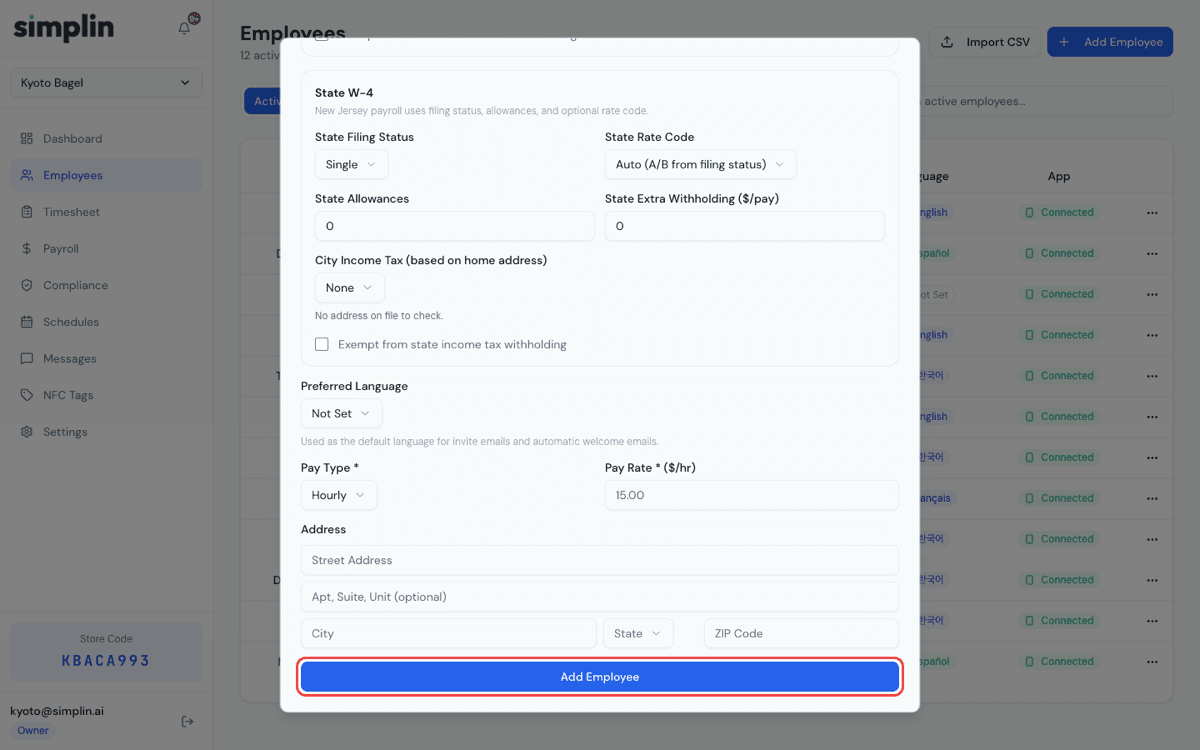
You don't need the tax (W-4) fields yet. When you get the employee's W-4 form, fill them in later via Edit in the same menu. Adding a whole team? Use Import CSV.
4. Send the invite
The invite link is how the employee connects the app. You can send it by text or chat (recommended), or by email.
- 1
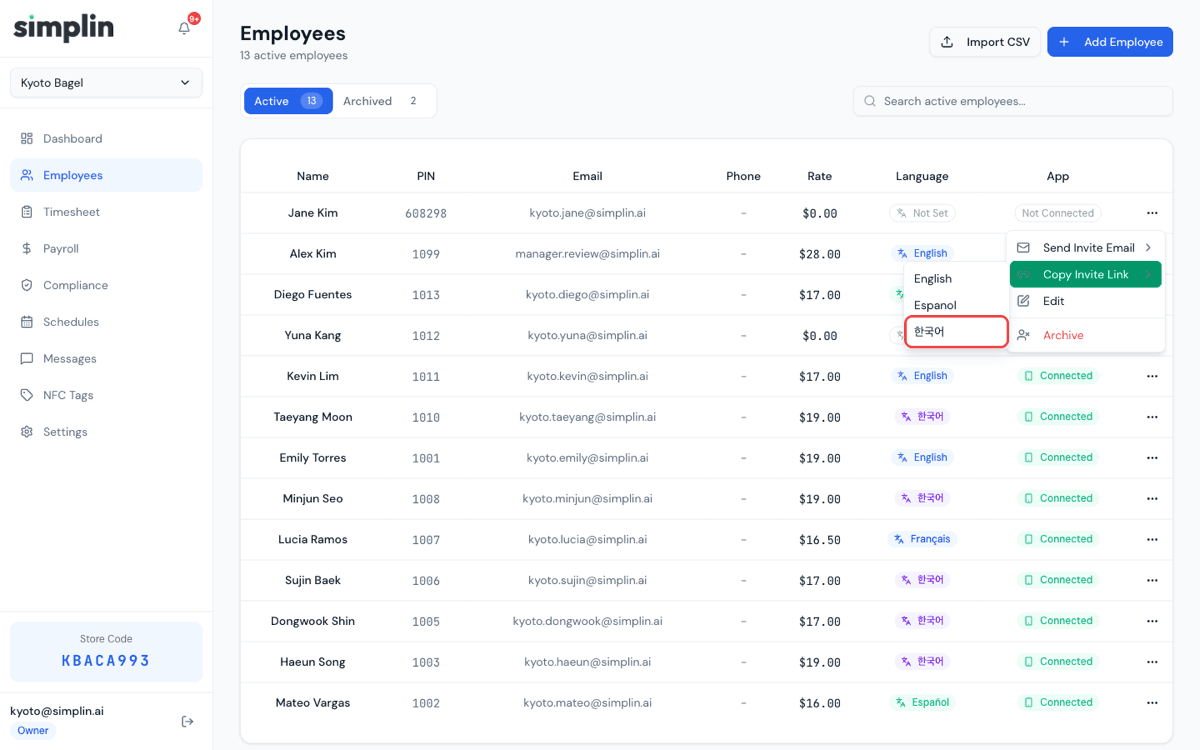
Click the three-dot (⋯) button at the far right of the employee's row.
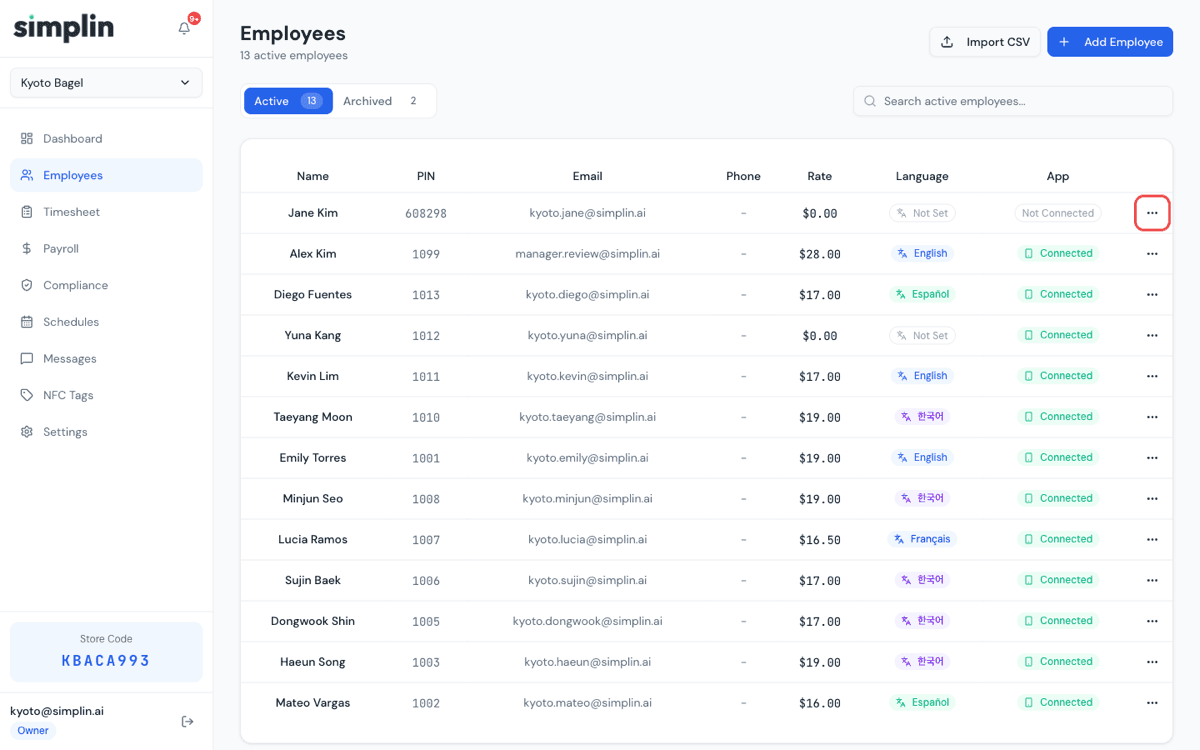
- 2
When the menu opens, hover over Copy Invite Link.
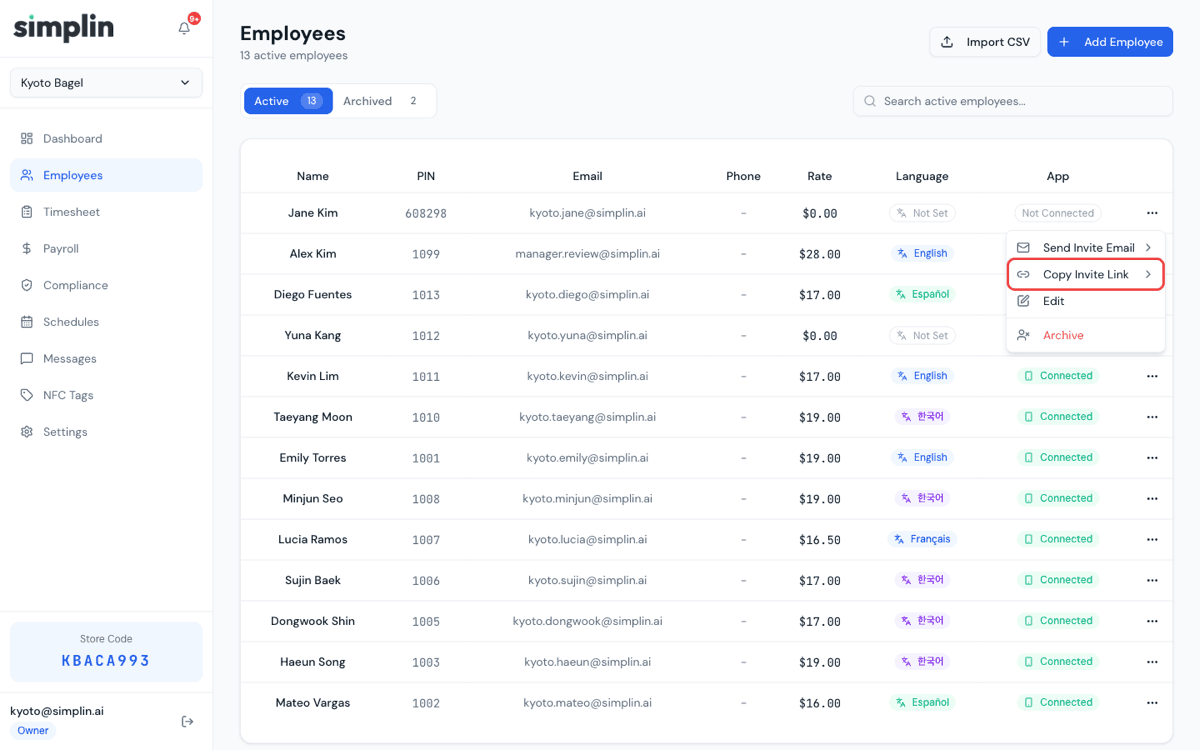
- 3
Click the employee's language — Espanol for Spanish speakers, 한국어 for Korean speakers.
- 4
When the "Invite link copied" message appears, click OK. The link is already copied.
- 5
Open your texting or chat app, paste the link into your conversation with the employee, and send it. That's all you have to do.
Prefer email? Click Send Invite Email in the same menu — an email with the invite link goes out automatically. Links last 14 days; creating a new one replaces the old link.
5. What happens on the employee's phone
Once the link arrives, the phone walks the employee through everything. Just show them these pictures and say "follow this."
- 1
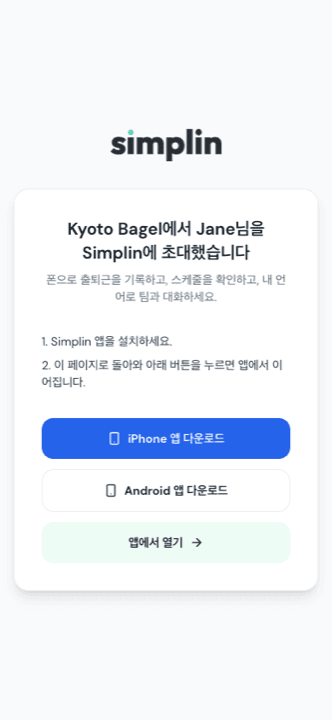
Tapping the link opens this page. The blue button installs the app. (If the app is already installed, the app opens directly instead.)
- 2
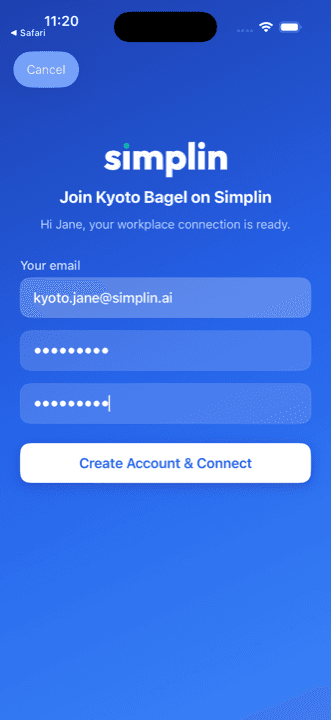
After installing, they tap the link once more. The app opens with the store name and their email already filled in.
- 3
They type a password twice and tap Create Account & Connect. Done — the clock-in screen appears. No verification email, no store code.
6. Start clocking in with the NFC sticker
Simplin's main way to clock in is an NFC sticker on your wall. Instead of a $500 kiosk, employees just tap their phone on a sticker.
- 1
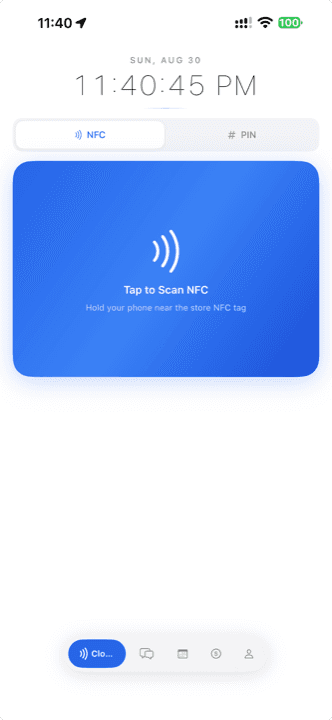
Put an NFC sticker by the employee entrance or kitchen door. Register stickers under NFC Tags in your dashboard. Clocking in looks like this — the employee just holds their phone to the sticker.

- 2
That tap is the clock-in. On the app's Clock screen, the employee taps the blue NFC area and holds the phone to the sticker — done. Clocking out is the same tap. GPS also confirms they're at your store, so nobody can clock in for a friend.
7. Publish a schedule
- 1
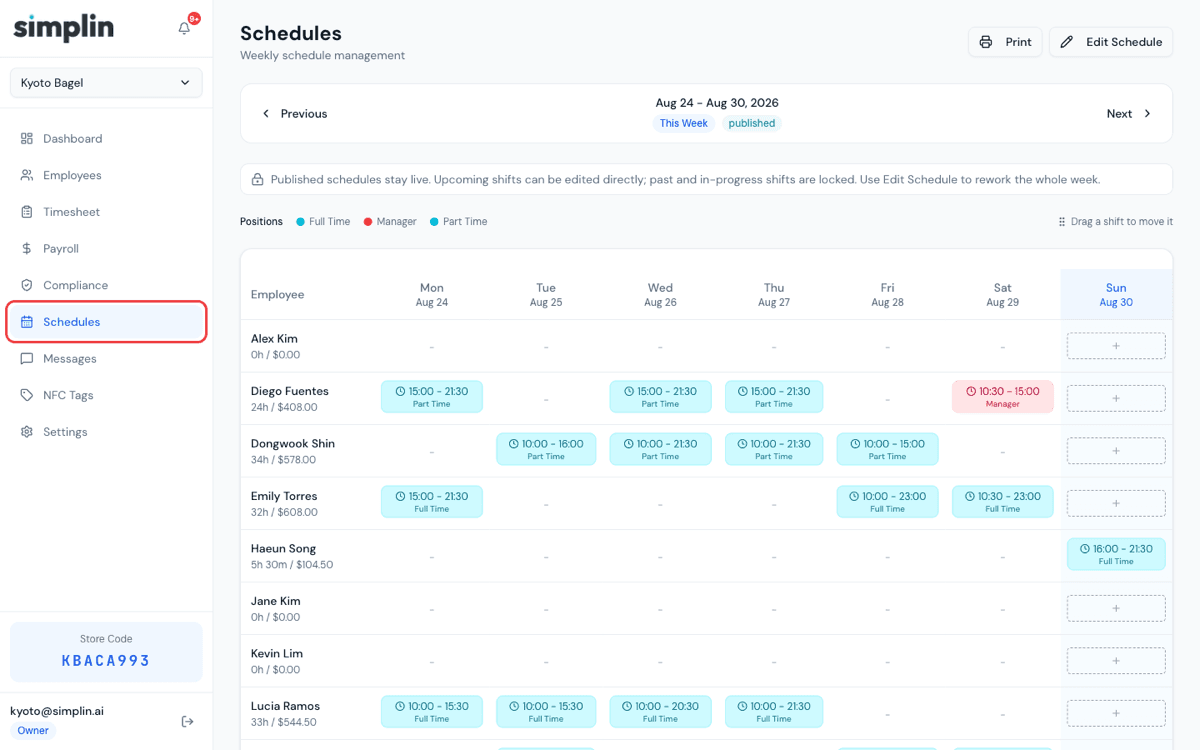
Click Schedules in the left menu and build the week by adding shifts per employee. When it's ready, click Publish. Published shifts show in each employee's app and drive late/missed-shift alerts.
8. Review hours and run payroll
- 1
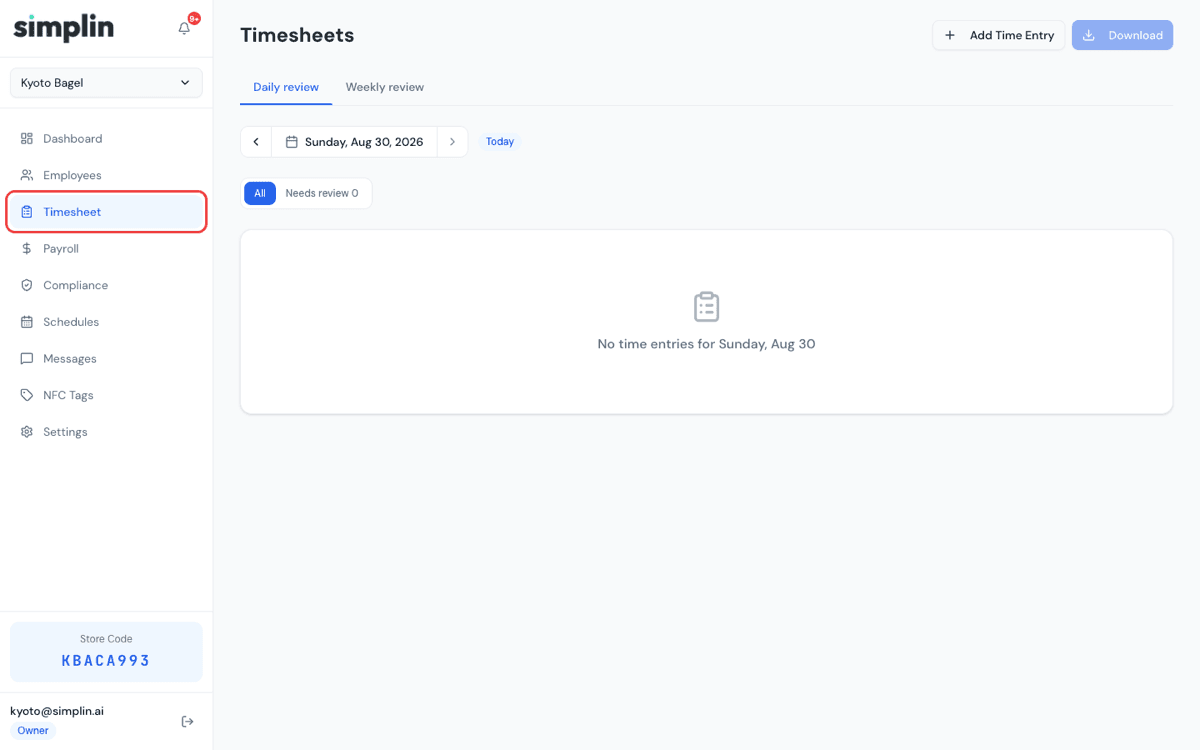
Click Timesheet in the left menu to see every clock-in as it happens. Add or fix entries right there.
- 2
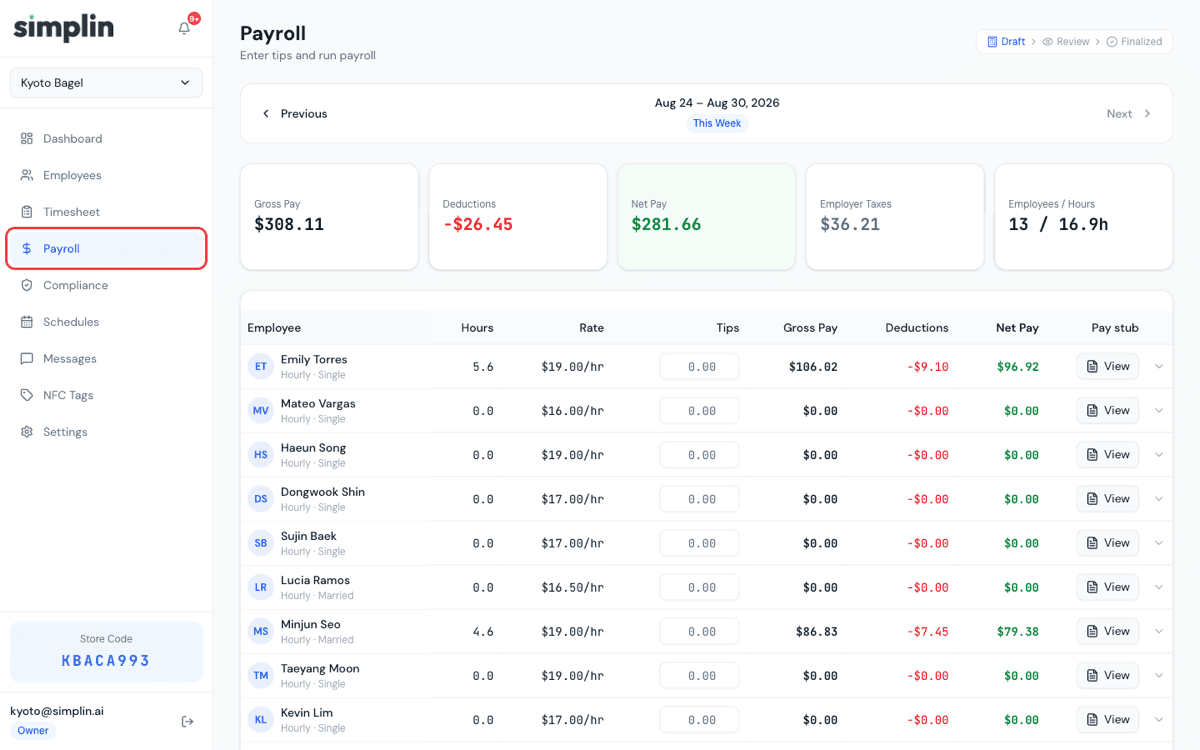
When the pay period ends, click Payroll. Gross pay, tax withholding, and net pay are calculated for you — ready to hand to your accountant.
9. Message your team in any language
- 1
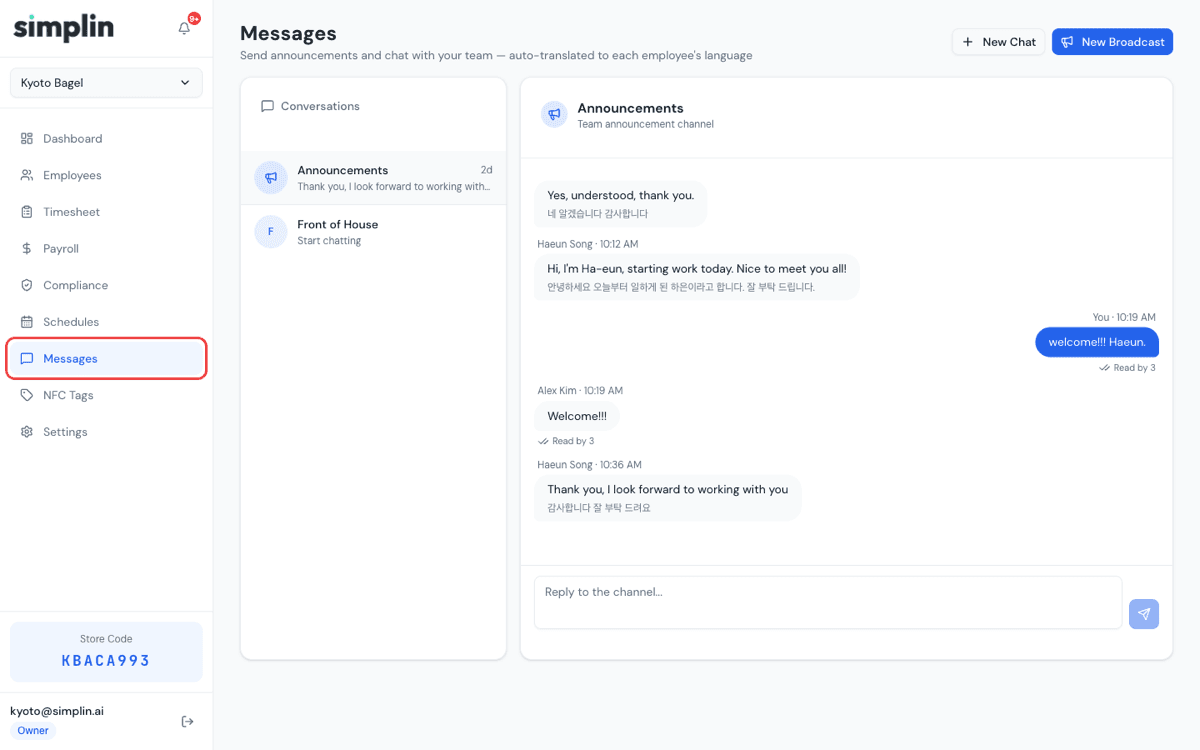
Click Messages in the left menu and write in your language — each employee reads it in theirs. Simplin auto-translates across English, Korean, Spanish, Japanese, Chinese, French, and German. Use a broadcast to reach the whole store at once.
Common questions
What if an employee doesn't have an email address?
An email is needed for the app account, so help them create one — any free address works. Until then, they can still clock in with their PIN on the web kiosk at simplin.ai/clock; hours are tracked the same way.
The invite link doesn't open anything on the employee's phone.
Make sure the Simplin app is updated to the latest version, and if they just installed it, tap the link one more time. Links expire after 14 days — issue a fresh one from the employee menu if needed.
An employee got a new phone. What do I do?
Open the three-dot (⋯) menu next to that employee and choose Reset Device. When they sign in on the new phone, it binds automatically.
An employee forgot their password.
Choose Send Password Reset from the employee menu. They get a reset email and pick a new password — no need to recreate anything.
What does the free plan include?
One store, up to 10 employees, and 2,000 translated messages per month — with clock-ins, timesheets, schedules, and payroll reports all included. Upgrade only when your team outgrows it.
Ready when you are
Your dashboard has everything above in the left menu. Start with one employee and one invite — the rest follows.
Open your dashboardStuck on anything? Email support@simplin.ai — a real person answers.