
PAYROLL · 웹 대시보드 · OWNER / ADMINPAYROLL · WEB DASHBOARD · OWNER / ADMIN
Square 팁부터
급여명세서까지From Square tips
to pay stubs
한 주의 팁을 가져오고, 직원별로 나누고, 급여를 확정합니다. 매주 반복하는 급여 정산을 화면 순서대로 따라 해 보세요.Import the week’s tips, distribute them to employees, and finalize payroll. Follow the screens through your weekly payroll routine.
영상을 불러오지 못했습니다. 아래 다운로드 링크를 이용하거나 단계별 안내를 읽어 주세요.The video could not load. Use the download link below or follow the written steps.
이름·매장·금액은 모두 가상 데이터입니다. 원본 시연의 순서를 따라 화면을 재구성했으며, 실제 직원 정보나 급여 금액은 사용하지 않았습니다.All names, stores, and amounts are fictional. The screens recreate the original demonstration’s sequence without real employee details or payroll figures.
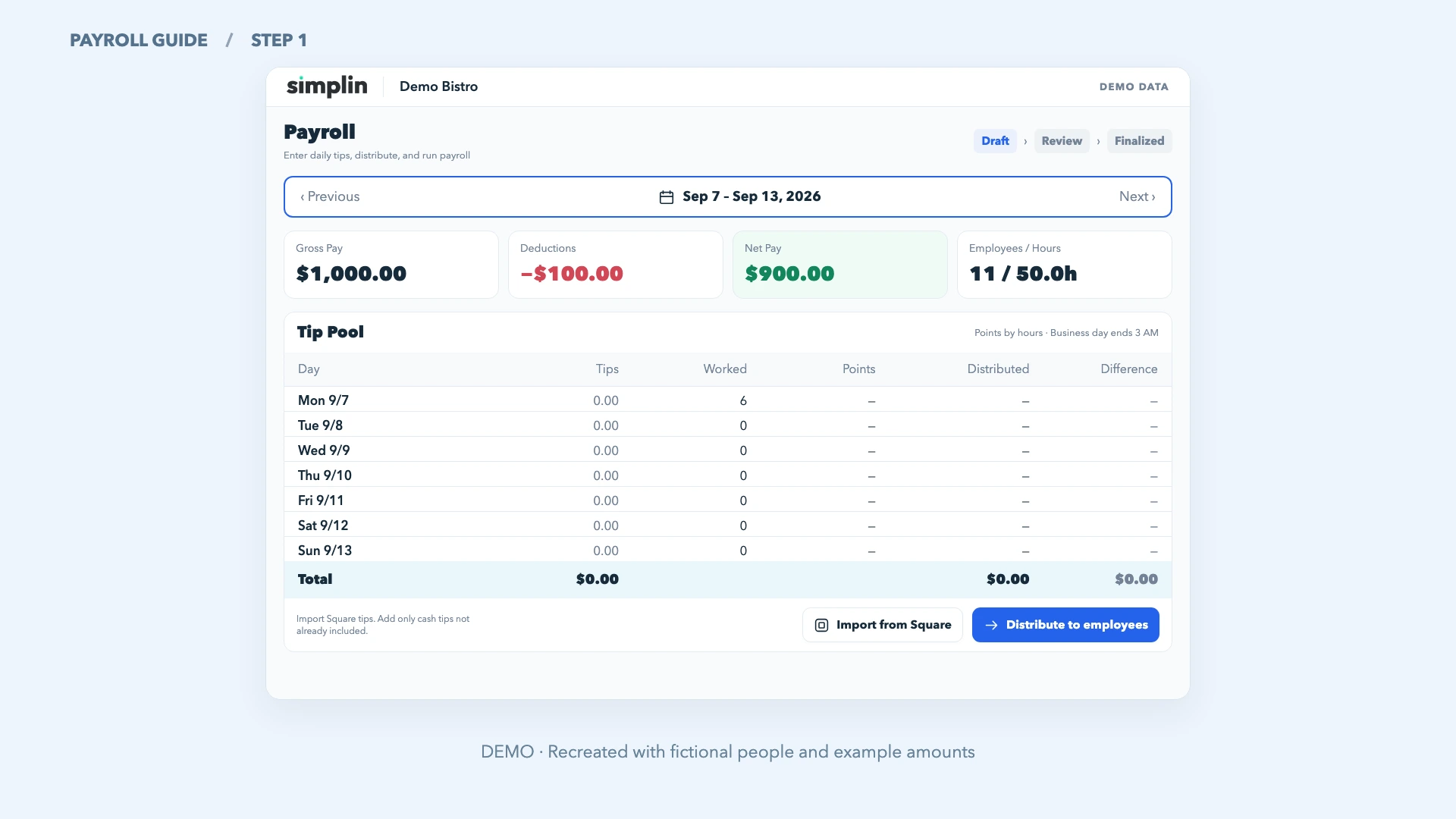
정산할 매장과 기간을 확인하세요Check the store and pay period
팁을 가져오기 전에 어느 매장의 어느 주를 정산하는지 확인합니다.Confirm which store and week you are working on before importing tips.
- 왼쪽에서 매장을 선택하고 Payroll을 엽니다.Select the store on the left and open Payroll.
- Previous와 Next로 급여 기간을 확인합니다. 입력은 Draft 단계에서 진행합니다.Use Previous and Next to check the pay period. Make changes in the Draft stage.
- 근무시간이 맞는지 살펴봅니다. 출퇴근 기록을 고쳐야 한다면 먼저 Timesheet에서 수정합니다.Review the hours. If a time entry needs a correction, update it in Timesheet first.
Square에서 일별 팁을 가져오세요Import daily tips from Square
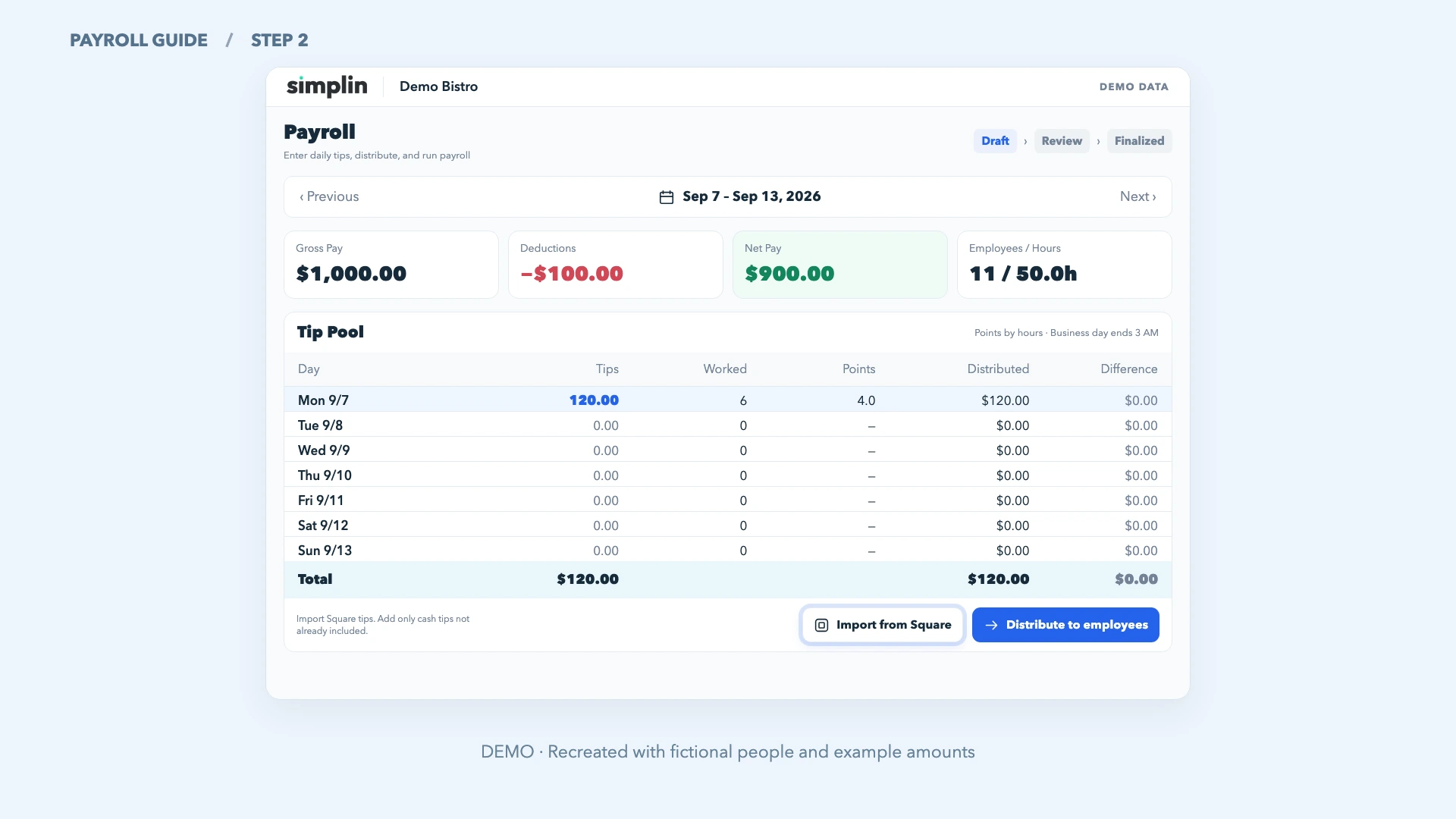
Square에 기록된 팁으로 Tip Pool의 일별 금액을 채웁니다. 직원별 분배는 다음 단계에서 합니다.Importing fills Tip Pool with the daily tips recorded in Square. Employee distribution comes next.
- Tip Pool 아래의 Import from Square를 누르고 완료될 때까지 기다립니다.Select Import from Square below Tip Pool and wait for it to finish.
- 날짜별 Tips, 결제 건수, Total을 확인합니다. 날짜는 매장 시간대와 영업일 마감 시각에 맞춰집니다. Distributed는 계산 미리보기이며, 직원별 Tips에 적용하려면 Distribute to employees를 눌러야 합니다.Review each day’s Tips, payment count, and the Total. Dates follow the store’s time zone and business-day cutoff. Distributed is a calculation preview; select Distribute to employees to apply it to employee Tips.
- 가져온 금액에 포함되지 않은 현금 팁만 해당 날짜의 총액에 더합니다. Square 금액에 이미 포함된 현금 팁은 다시 더하지 마세요. 이 영상에서는 현금 팁을 추가하지 않습니다.Add only cash tips that are not included in the imported amount to that day’s total. Do not add cash tips again if they are already included in Square’s amount. The video does not demonstrate adding cash tips.
이미 금액이 있으면 Square 금액으로 바꿀지 묻습니다. 확인하면 기존 일별 입력값이 교체되므로, 현금 팁이나 수동 수정분을 다시 확인하세요.If amounts already exist, Simplin asks whether to replace them with Square’s numbers. Confirming replaces the daily entries, so check any cash tips or manual changes again.
직원별 팁을 분배하고 확인하세요Distribute and check employee tips
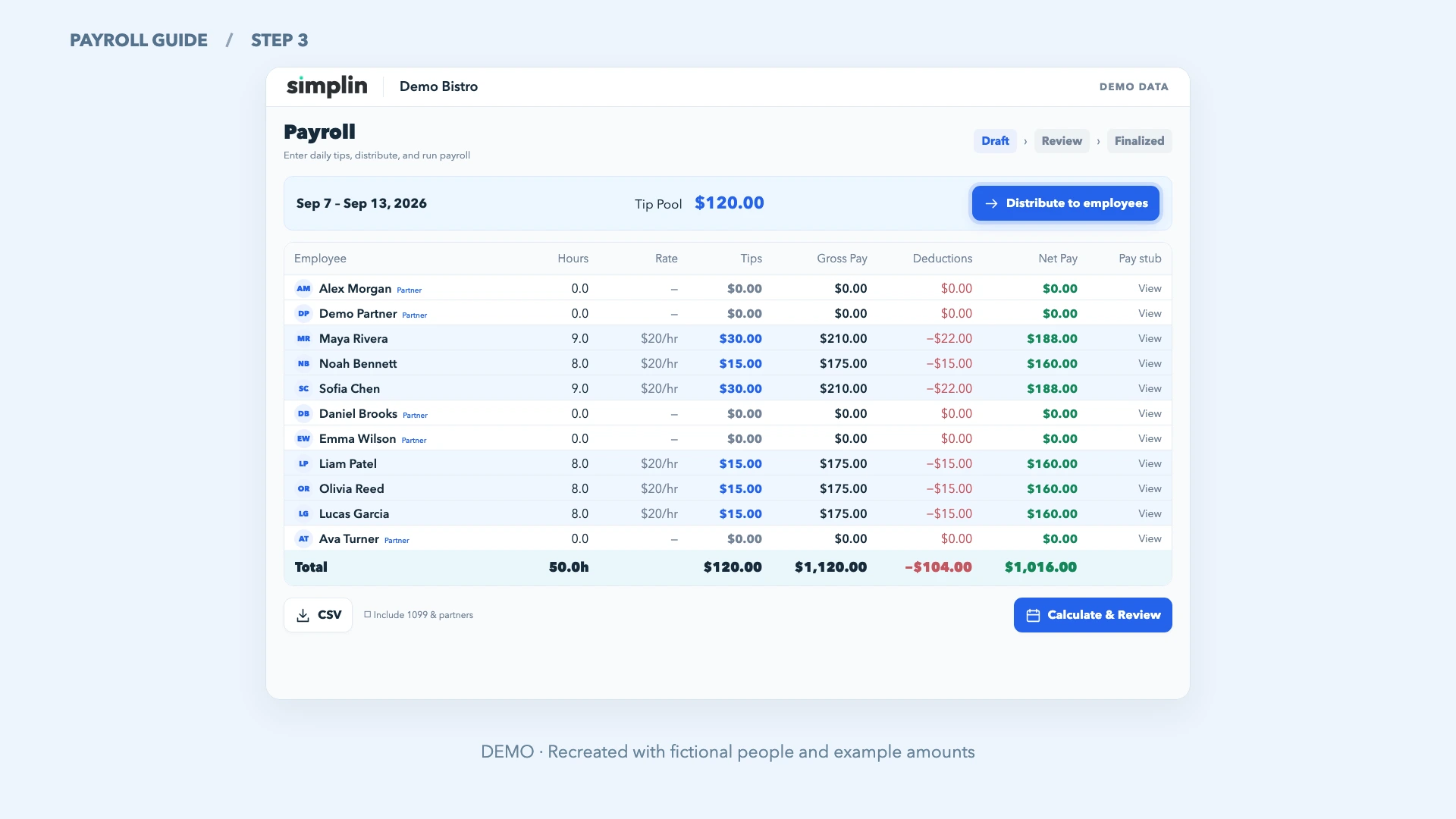
매장의 분배 규칙과 그날의 근무 기록으로 직원별 팁을 계산합니다.Simplin uses the store’s distribution rules and each day’s time entries to calculate employee tips.
- Distribute to employees를 누릅니다.Select Distribute to employees.
- 아래 직원 표의 Tips가 채워졌는지 확인합니다. Partner로 지정된 사람은 자동 분배에서 제외됩니다.Check that the Tips column in the employee table is filled. People marked as Partner are excluded from automatic distribution.
- 필요한 금액은 직원별로 수정할 수 있습니다. 일별 팁을 다시 바꿨다면 분배를 다시 적용하고 직원별 금액을 재확인합니다.You can adjust individual amounts. If you change the daily tip totals, distribute again and recheck each employee’s amount.
9시간 기준의 포인트 설정 예시An example using a 9-hour point threshold
참여 조건을 충족한 직원에게 다음과 같이 포인트를 부여하는 설정입니다. 월요일 팁 $120.00을 참여 직원 6명의 총 4포인트로 나누면, 1포인트는 $30.00, 0.5포인트는 $15.00입니다. 다른 요일의 팁은 $0.00인 예시입니다.This setting gives eligible employees points as shown below. Monday’s $120.00 tip pool divided across six employees’ 4 points gives $30.00 for 1 point and $15.00 for 0.5 points. The other days have $0.00 in tips in this example.
| 직원Employee | 하루 근무시간Daily hours | 포인트Points | 분배된 팁Tip share |
|---|---|---|---|
| Maya Rivera | 9시간9 hours | 1.0 | $30.00 |
| Noah Bennett | 8시간8 hours | 0.5 | $15.00 |
| Sofia Chen | 9시간9 hours | 1.0 | $30.00 |
| Liam Patel | 8시간8 hours | 0.5 | $15.00 |
| Olivia Reed | 8시간8 hours | 0.5 | $15.00 |
| Lucas Garcia | 8시간8 hours | 0.5 | $15.00 |
| 합계Total | 50시간50 hours | 4.0 | $120.00 |
9시간은 모든 매장의 공통 기본값이 아닙니다. 실제 참여 조건, 시간 구간, 휴게시간 차감 여부는 Settings → Tip Pool에 저장된 설정을 따릅니다.Nine hours is not the default for every store. Eligibility, hour thresholds, and whether breaks are deducted follow the saved settings in Settings → Tip Pool.
Difference에 1센트 차이가 보인다면If Difference shows a one-cent difference
센트 단위로 반올림하고 차액을 자동 보정하지 않는 설정에서는 날짜별 Difference에 양수나 음수의 소액이 표시될 수 있습니다. 직원의 기간 합계는 날짜별 반올림 전 금액을 더한 뒤 한 번 반올림하므로, 표시된 일별 금액의 합과 1센트 차이가 날 수도 있습니다.When rounding to cents without automatically balancing the difference, a day’s Difference may be a small positive or negative amount. Each employee’s period total is rounded once after adding the unrounded daily shares, so it can differ by a cent from the sum of the displayed daily amounts.
Difference = 일별 팁 총액 − 일별 분배액 합계. 확정 전에는 직원 표의 최종 Tips와 합계를 확인합니다.Difference = daily tip total − sum of daily distributed amounts. Check the final employee Tips and total before finalizing.
급여를 계산하고 검토하세요Calculate and review payroll
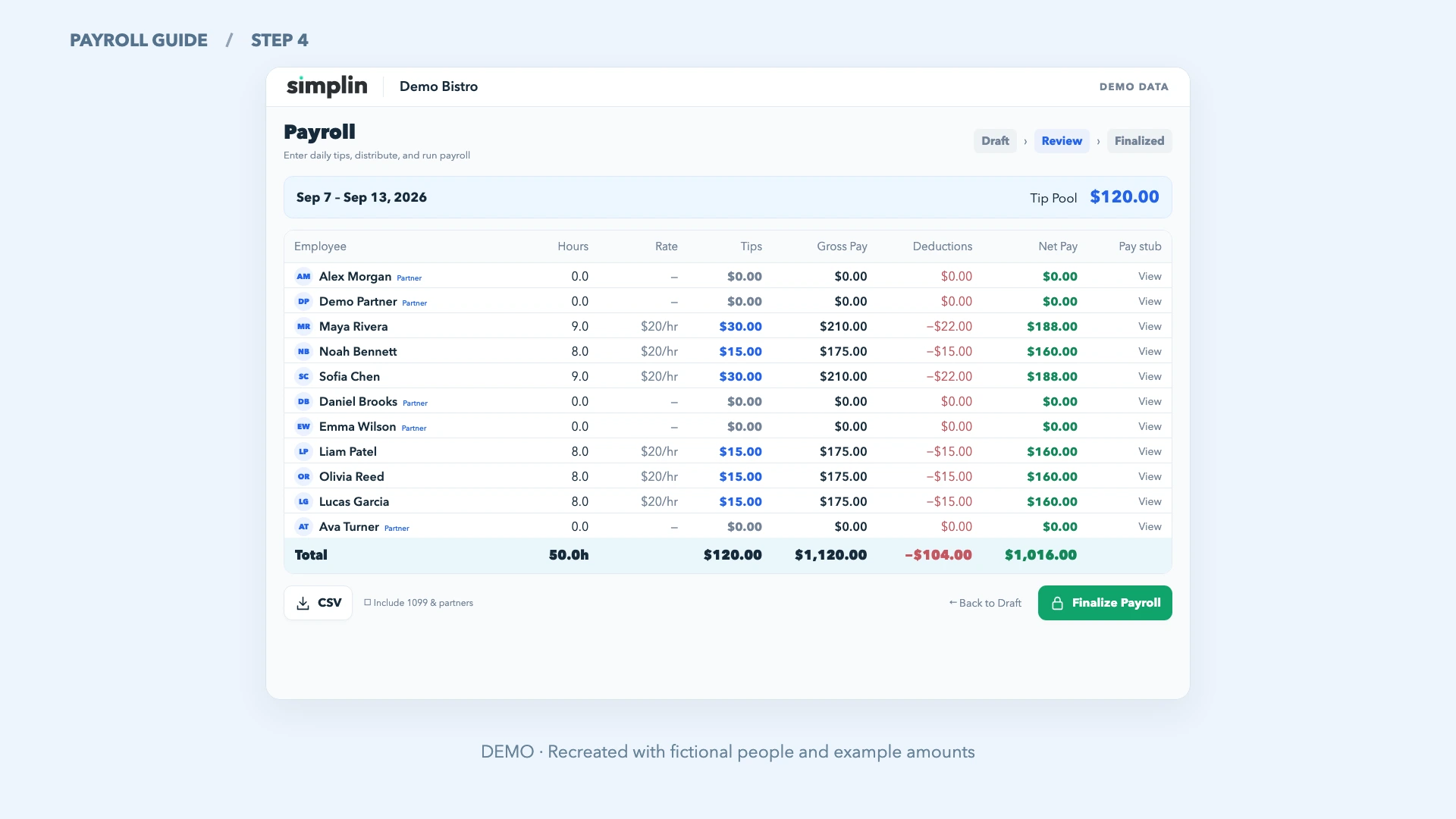
팁을 포함한 급여를 저장하고, 확정 전에 직원별 금액을 살펴봅니다.Save payroll with the tips included, then review each employee’s amounts before finalizing.
- 직원 표에서 근무시간, 시급, 팁을 확인한 뒤 Calculate & Review를 누릅니다.Check hours, rates, and tips in the employee table, then select Calculate & Review.
- Review 상태에서 총급여, 공제액, 실수령액을 확인합니다. 직원 행을 펼치면 상세 계산과 저장된 팁 분배 내역을 볼 수 있습니다.In Review, check gross pay, deductions, and net pay. Expand an employee row to see calculation details and the saved tip distribution.
- 수정할 금액이 있으면 Back to Draft로 돌아가 고친 뒤 다시 계산합니다.If an amount needs changing, select Back to Draft, make the correction, and calculate again.
검토한 급여를 확정하세요Finalize the reviewed payroll
확정된 급여가 명세서의 연누계에 반영됩니다.Finalized payroll is included in year-to-date totals on pay stubs.
- Finalize Payroll을 누르고 확인 창의 안내를 읽습니다.Select Finalize Payroll and read the confirmation.
- 내용이 맞으면 확인합니다. 상태가 Finalized로 바뀌고 Send Pay Stubs가 표시됩니다.Confirm when everything is correct. The status changes to Finalized and Send Pay Stubs appears.
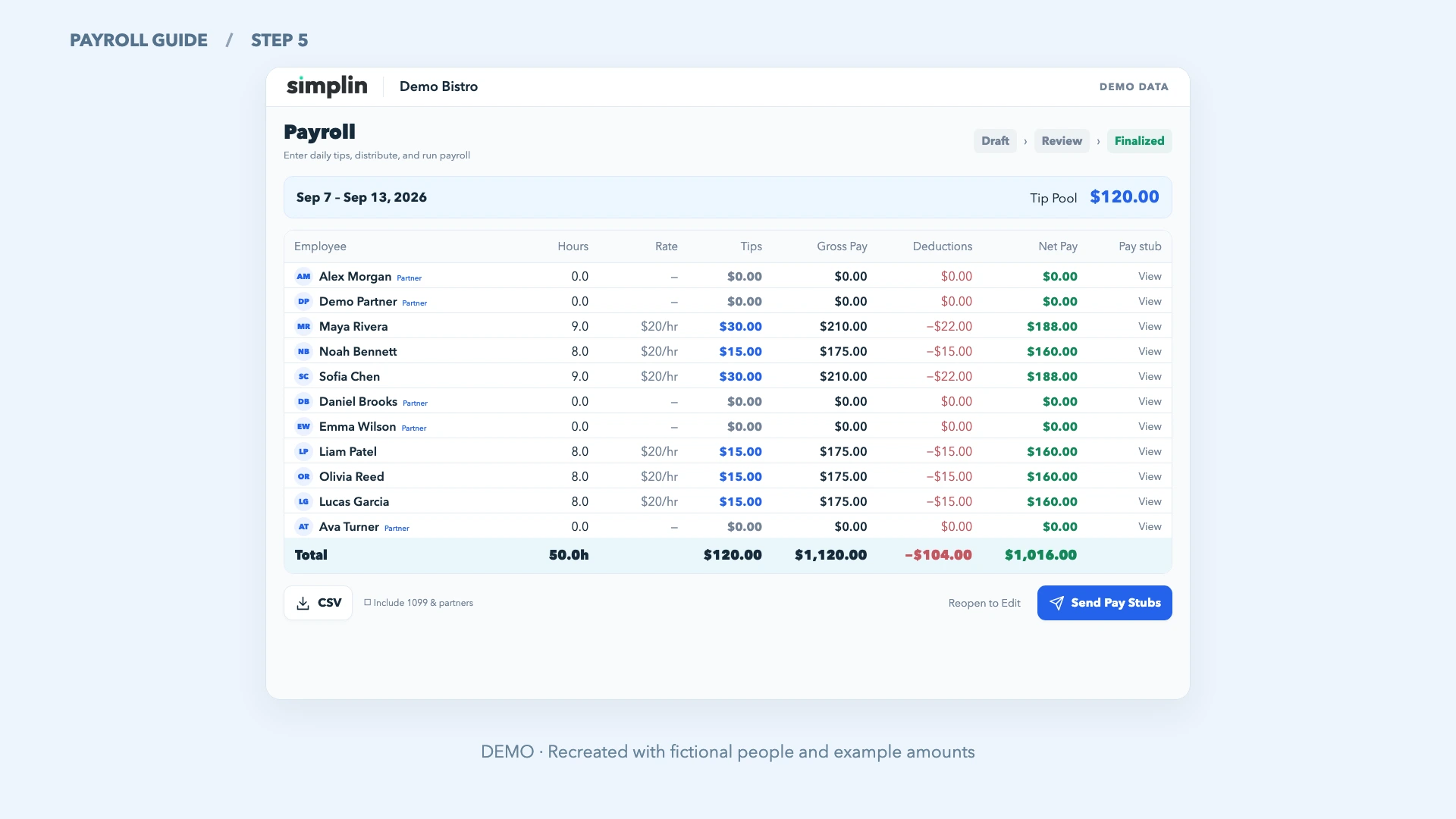
급여명세서를 보내세요Send the pay stubs
확정 후 등록된 이메일로 명세서를 보내고 발송 결과를 확인합니다.After finalizing, send pay stubs to the email addresses on file and check the result.
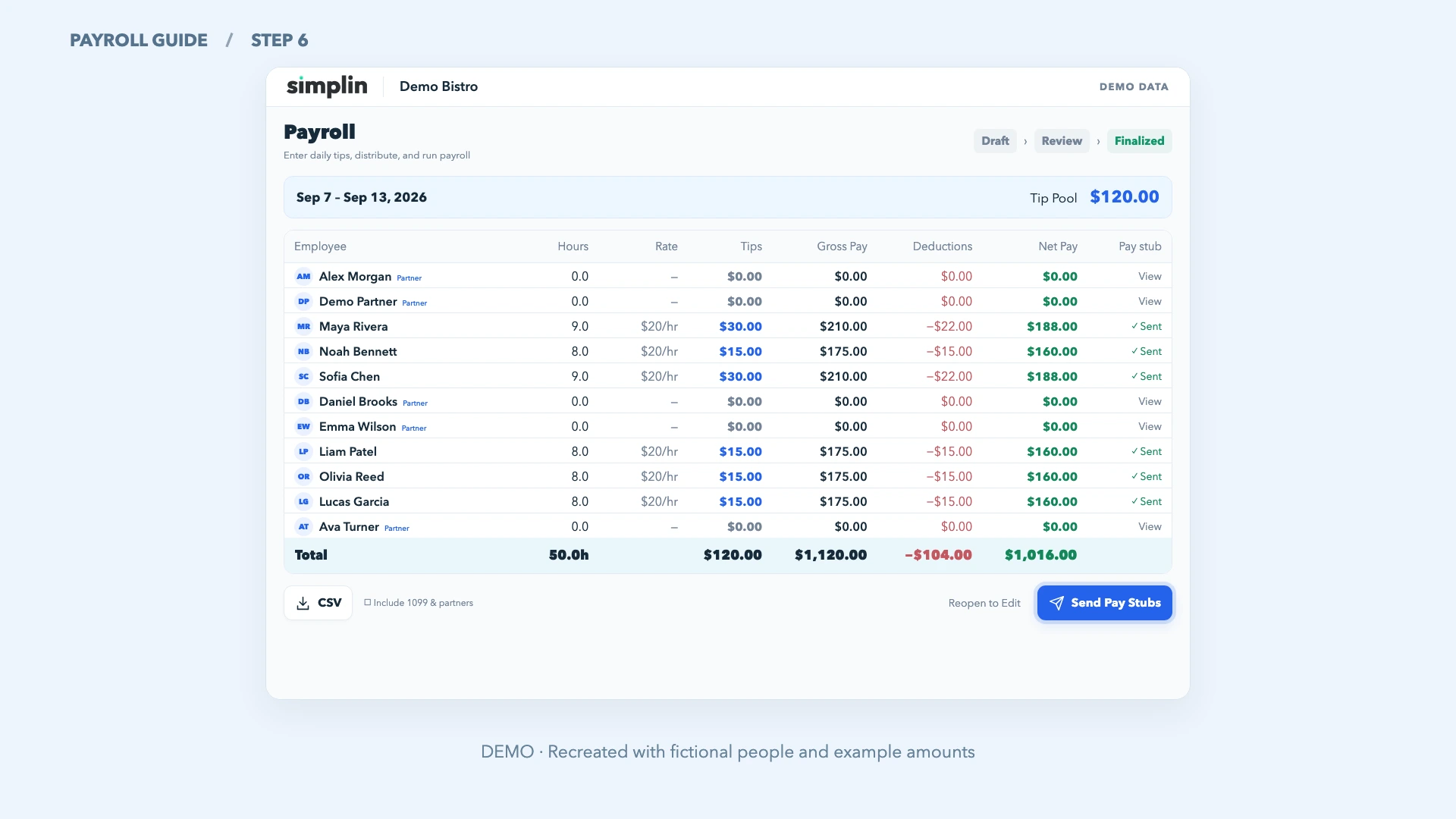
- Send Pay Stubs를 누르고 확인 창에서 발송을 승인합니다.Select Send Pay Stubs and confirm the send.
- 완료 안내의 발송 인원과 제외 인원을 확인합니다. 파트너, 해당 기간 급여가 없는 직원, 이메일이 없는 직원은 일괄 발송에서 제외됩니다.Check the completion message for sent and skipped counts. Partners, employees with no pay for the period, and employees without an email are skipped by the bulk send.
- 직원 표의 Sent 표시를 확인합니다. 문제가 있으면 해당 직원의 이메일과 발송 결과를 점검합니다.Check the Sent labels in the employee table. If something is missing, review the employee’s email address and send result.
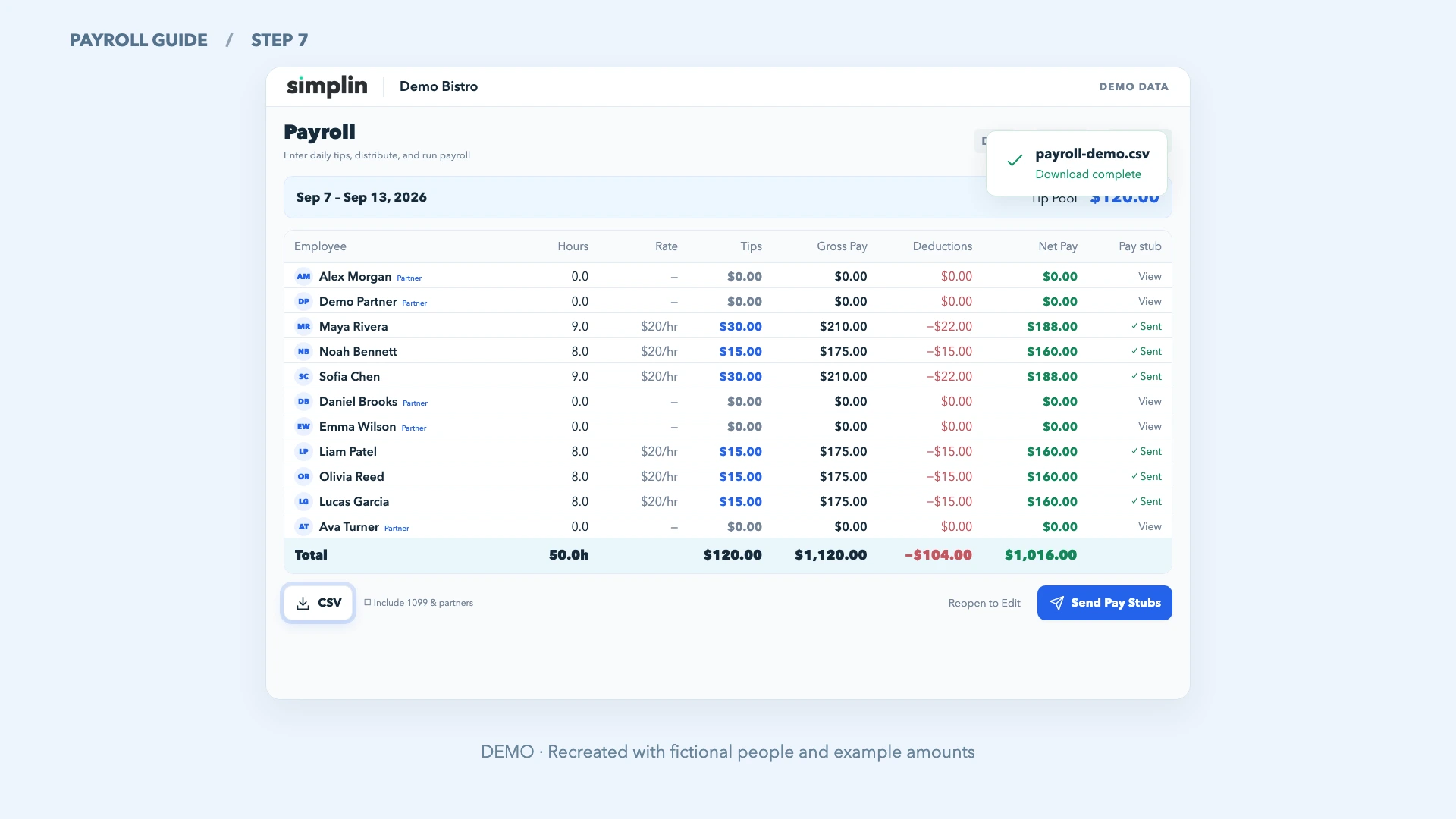
급여 자료를 CSV로 저장하세요Save payroll as a CSV
검토한 급여 자료를 내려받아 보관하거나 회계 업무에 활용합니다.Download the reviewed payroll for your records or accounting workflow.
- 직원 표 아래의 CSV를 누릅니다.Select CSV below the employee table.
- 기본 내보내기 대상은 W-2 직원입니다. 1099와 파트너도 포함하려면 Include 1099 & partners를 선택한 뒤 저장합니다.The export includes W-2 employees by default. Select Include 1099 & partners before saving if you also want those rows.
- 다운로드가 완료됐는지 확인합니다. 파일에는 근무시간, 팁, 총급여, 공제액, 실수령액 등이 담깁니다.Confirm that the download completed. The file includes hours, tips, gross pay, deductions, net pay, and related payroll columns.
자주 확인하는 내용Common questions
Import from Square 버튼이 보이지 않아요.I don’t see Import from Square.
Square 보고서의 날짜별 금액과 달라요.The daily amounts differ from my Square report.
팁을 가져왔는데 직원의 Tips는 그대로예요.I imported tips, but employee Tips did not change.
Finalize나 명세서 발송이 은행 송금도 하나요?Does finalizing or sending stubs transfer money?
이번 주 정산, 순서대로 마무리하세요Finish this week’s payroll in order
기간 확인 → 팁 가져오기·분배 → 검토·확정 → 명세서·CSVCheck the period → import & distribute → review & finalize → stubs & CSV