simplin simplin
simplin.ai 홈simplin.ai
iPhone · Android 앱 · 매니저와 관리자용iPhone · Android app · for managers and admins

Simplin Manager 시작하기 Getting started with Simplin Manager

매장 운영을 손 안에서. 오늘 누가 나와 있는지, 이번 주 인건비가 얼마인지, 스케줄과 팀 메시지까지 Simplin Manager 앱 하나로 확인하고 처리하세요. 이 가이드는 권한 설정부터 설치, 각 화면의 사용법까지 순서대로 안내합니다. Run the store from your pocket. See who is in today, what this week's labor costs, and handle schedules and team messages in one app. This guide walks through access setup, installation, and every screen in order.

Simplin Manager home screen
1

관리자 페이지에서 앱 접근 권한을 지정하세요Grant Manager App Access on the web dashboard

Simplin Manager 앱은 매장 오너가 권한을 준 사람만 열 수 있습니다. 먼저 웹 관리자 페이지에서 누가 앱을 쓸지 정해 주세요.Only people the store owner has granted access can open Simplin Manager. Decide who gets in from the web dashboard first.

  1. simplin.ai에 오너 계정으로 로그인한 뒤 왼쪽 메뉴에서 Employees를 누르세요.Sign in to simplin.ai with the owner account and open Employees in the left menu.
  2. 권한을 줄 직원의 버튼을 눌러 편집 화면을 여세요.Press next to the person you want to grant access and open the edit form.
  3. 아래로 내려 Manager App Access 항목에서 Manager 또는 Admin을 선택하세요.Scroll to Manager App Access and choose Manager or Admin.
  4. 맨 아래 저장 버튼을 누르면 바로 적용됩니다.Press Save at the bottom. The change applies right away.
Role(직책)과는 별개입니다.This is separate from Role. 직원 정보의 Role은 Manager, Full Time, Part Time 같은 직책 표시일 뿐이고, 앱을 열 수 있는지는 Manager App Access 항목이 결정합니다. Role on the employee record is only a job title. Whether someone can open the app is decided by Manager App Access alone.
simplin.ai dashboard with the Employees menu highlighted
Manager App Access
Lets this person open the Simplin Manager app and run this store. This is separate from the Role above, which is only a job title.
No accessCan't open the Simplin Manager app.
ManagerLive board, schedule, team hours, and messages. Does not see pay rates, labor cost, or payroll.
AdminEverything a manager sees, plus labor cost, pay, and payroll history.
Save
직원 편집 화면의 Manager App Access 항목The Manager App Access section of the employee form
앱에서 볼 수 있는 것What they can see in the app Manager Admin
오늘 근무 현황 (예정 · 근무 중 · 퇴근)Today's live board (scheduled, working, done)
스케줄 보기와 편집View and edit schedules
팀원별 근무 시간Team hours
공지와 팀 메시지Announcements and team messages
시급과 예상 급여Pay rates and estimated pay
이번 주 인건비 (일별 · 주간)Labor cost (daily and weekly)
지난 급여 내역Past payroll history
2

휴대폰에 Simplin Manager를 설치하세요Install Simplin Manager on your phone

iPhone은 App Store, Android는 Google Play에서 받는 무료 앱입니다. 직원용 Simplin 앱과는 다른 별도의 앱이니 아이콘을 확인해 주세요.It is a free download from the App Store on iPhone and Google Play on Android. It is a separate app from the Simplin employee app, so check the icon.

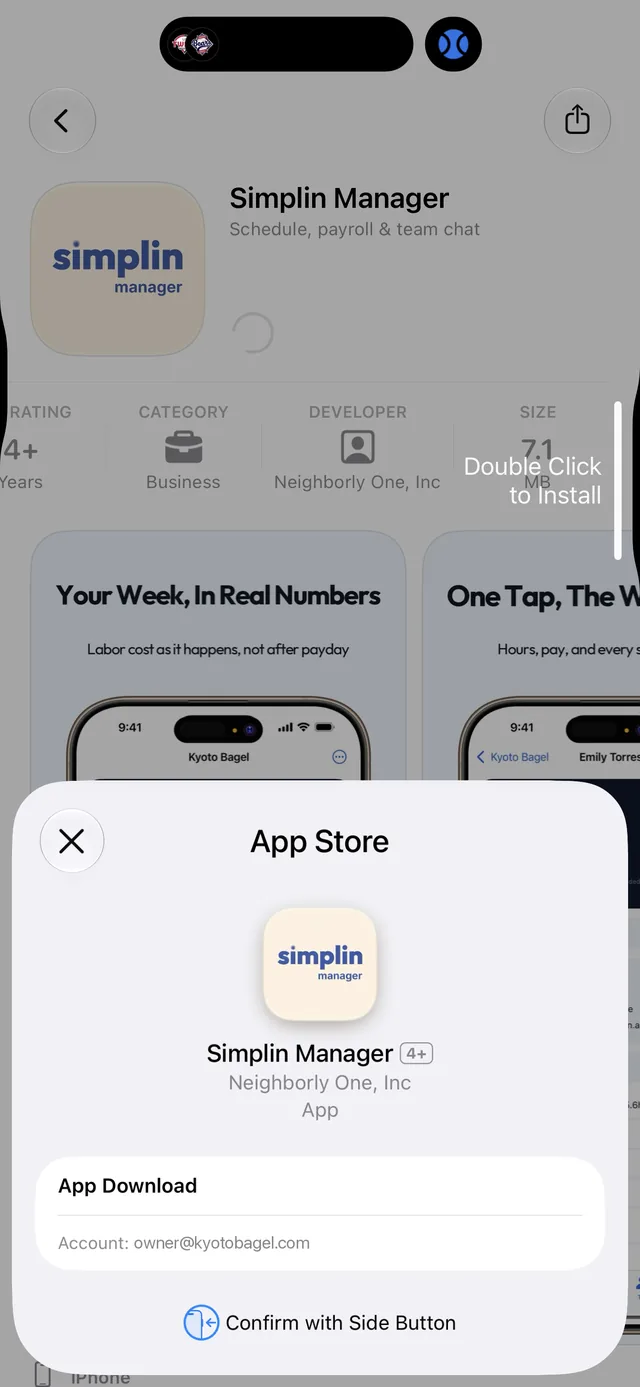
  1. 휴대폰에서 아래 버튼을 누르거나, App Store 또는 Google Play에서 Simplin Manager를 검색하세요.Tap the button below on your phone, or search the App Store or Google Play for Simplin Manager.
  2. 받기(iPhone) 또는 설치(Android)를 누르고 설치를 확인하세요.Tap Get on iPhone or Install on Android and confirm.
  3. 설치가 끝나면 홈 화면에서 크림색 simplin manager 아이콘을 여세요.When it finishes, open the cream-colored simplin manager icon on your home screen.
두 개의 앱, 두 가지 역할.Two apps, two jobs. 파란색 아이콘의 Simplin 앱은 직원이 출퇴근을 찍고 스케줄을 보는 앱이고, 크림색 아이콘의 Simplin Manager는 매장을 운영하는 사람을 위한 앱입니다. 매니저도 본인 출퇴근은 기존 Simplin 앱에서 그대로 찍습니다. The blue Simplin app is where staff clock in and check their schedule. The cream Simplin Manager app is for the people running the store. Managers keep clocking in with the regular Simplin app.
Simplin Manager on the App Store
App Store의 설치 화면. Google Play도 같은 방식입니다.The App Store listing. Google Play works the same way.
3

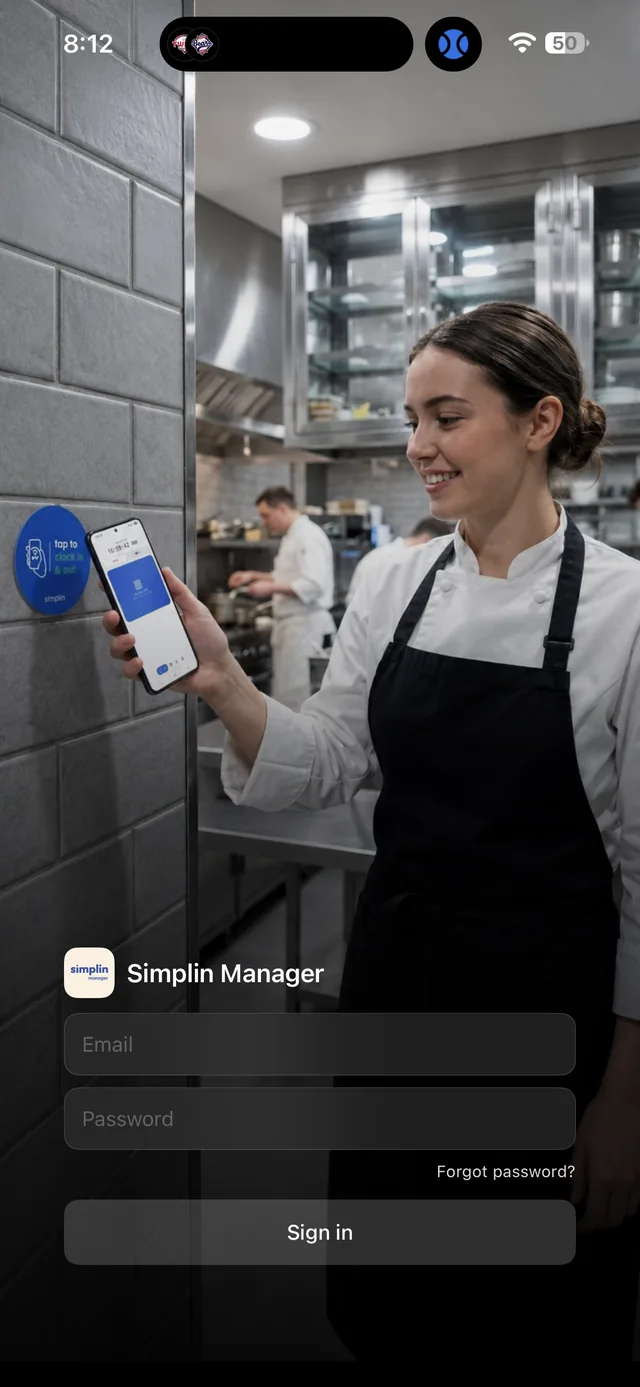
기존 Simplin 계정으로 로그인하세요Sign in with your existing Simplin account

새로 가입할 필요가 없습니다. 직원용 Simplin 앱에서 쓰던 이메일과 비밀번호를 그대로 입력하면 됩니다.There is nothing new to sign up for. Enter the same email and password you use in the Simplin employee app.

  1. 앱을 열면 로그인 화면이 나옵니다. EmailPassword를 입력하세요.The app opens on the sign-in screen. Enter your Email and Password.
  2. Sign in을 누르면 권한이 있는 매장의 홈 화면으로 이동합니다.Tap Sign in. You land on the home screen of the store you have access to.
  3. 비밀번호를 잊었다면 Forgot password?를 눌러 이메일로 재설정하세요.Forgot it? Tap Forgot password? to reset by email.
로그인이 안 되나요?Can't sign in? 가장 흔한 원인은 1단계의 Manager App Access가 아직 No access인 경우입니다. 오너에게 권한을 요청하고, 직원용 Simplin 앱에 먼저 로그인이 되는 계정인지도 확인해 주세요. The most common cause is Manager App Access still set to No access in Step 1. Ask the owner to grant it, and make sure the same account can sign in to the Simplin employee app.
Simplin Manager sign-in screen
로그인 화면Sign-in screen
화면 안내Screen by screen

앱의 다섯 개 탭, 이렇게 씁니다The five tabs and how to use them

하단 탭은 Home, Schedule, Team, Messages, Profile 다섯 개입니다. 각 탭에서 무엇을 보고 무엇을 할 수 있는지 정리했습니다. 화면 속 이름과 매장은 예시입니다.The bottom bar has five tabs: Home, Schedule, Team, Messages, and Profile. Here is what each one shows and what you can do there. Names and the store in the screenshots are examples.

Home

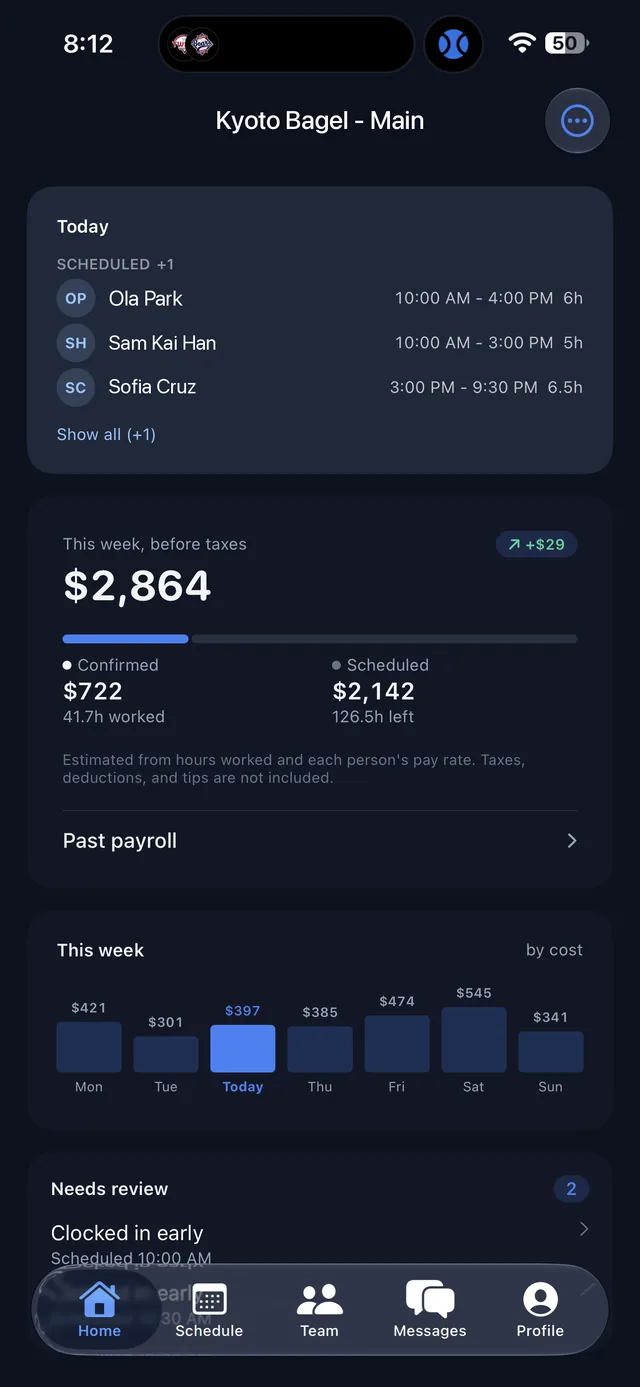
오늘과 이번 주를 한눈에Today and this week at a glance

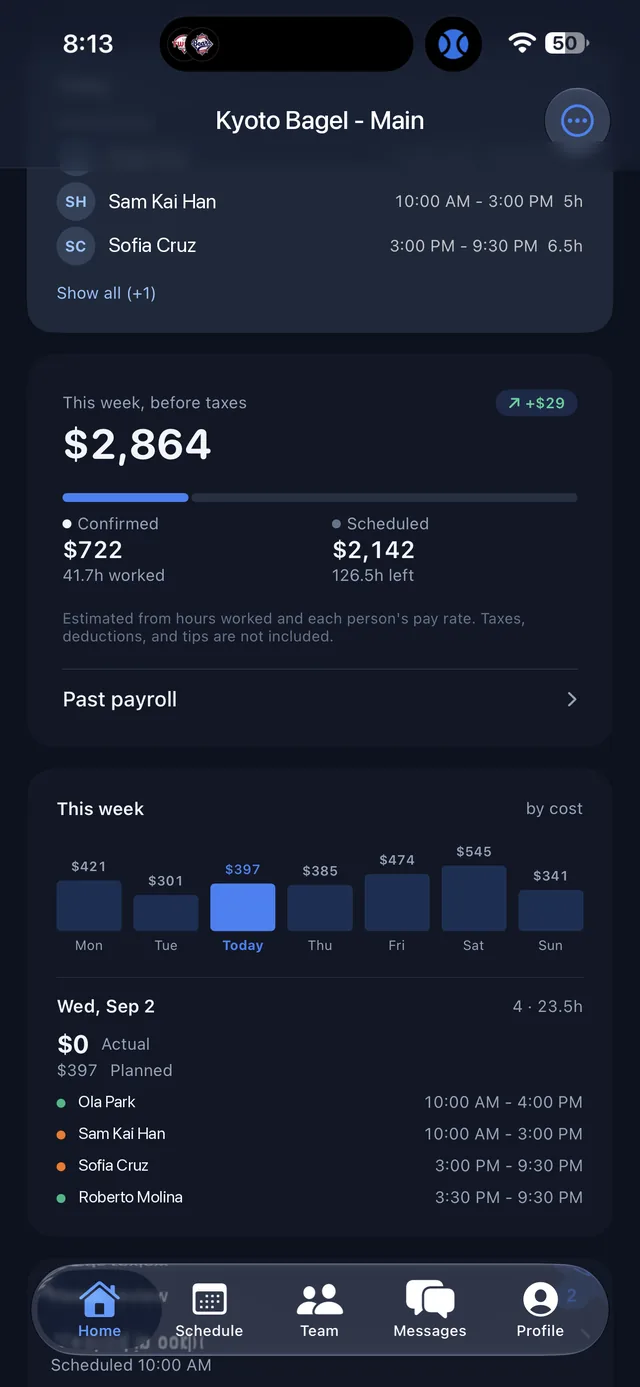
비즈니스 이름과 ⋯ 메뉴Business name and the ⋯ menu

상단에 지금 보고 있는 비즈니스 이름이 표시됩니다. 여러 비즈니스의 관리자라면 이 이름을 눌러 다른 비즈니스로 바꿀 수 있고, 고르는 즉시 모든 탭의 데이터가 그 비즈니스로 바뀝니다. 오른쪽 버튼을 누르면 카드 순서 변경, 라이트/다크 모드, 로그아웃 메뉴가 열립니다.The business you are viewing is shown at the top. If you manage more than one, tap the name to switch, and every tab updates to that business right away. The button opens card order, light/dark mode, and sign out.

Today

오늘 예정된 사람과 근무 시간이 상태별로 나뉘어 보입니다. 예정(Scheduled), 근무 중, 퇴근 완료를 구분해 주고, Show all을 누르면 접힌 인원까지 모두 펼쳐집니다.Who is scheduled today, with their shift times, grouped by status: scheduled, working, and done. Tap Show all to expand the full list.

This week, before taxes Admin

이번 주 예상 인건비(세전)입니다. Confirmed는 실제로 찍힌 근무 시간 기준, Scheduled는 아직 남아 있는 예정 근무 기준입니다. 세금, 공제, 팁은 포함되지 않습니다. 아래 Past payroll을 누르면 지난 주들의 급여 내역으로 이동합니다.Estimated labor cost for the week before taxes. Confirmed is based on hours already clocked, Scheduled on shifts still to come. Taxes, deductions, and tips are not included. Past payroll opens previous weeks.

This week · by cost Admin

요일별 인건비 막대 그래프입니다. 오늘이 강조되어 있고, 요일을 누르면 그날의 Actual(실제)과 Planned(계획) 금액, 그리고 근무자 목록이 아래에 펼쳐집니다. Manager 권한에서는 인건비 금액이 표시되지 않습니다.A bar per day for labor cost, with today highlighted. Tap a day to see its Actual and Planned amounts and who worked. Labor cost amounts are not shown to managers.

Needs review

확인이 필요한 출퇴근 기록의 개수와 목록입니다. 일찍 출근했거나 늦게 퇴근한 기록처럼 예정과 다른 항목이 여기에 모입니다. 항목을 누르면 바로 확인 화면이 열립니다.Time entries that need a look, such as early clock-ins or late clock-outs. Tap an entry to open it.

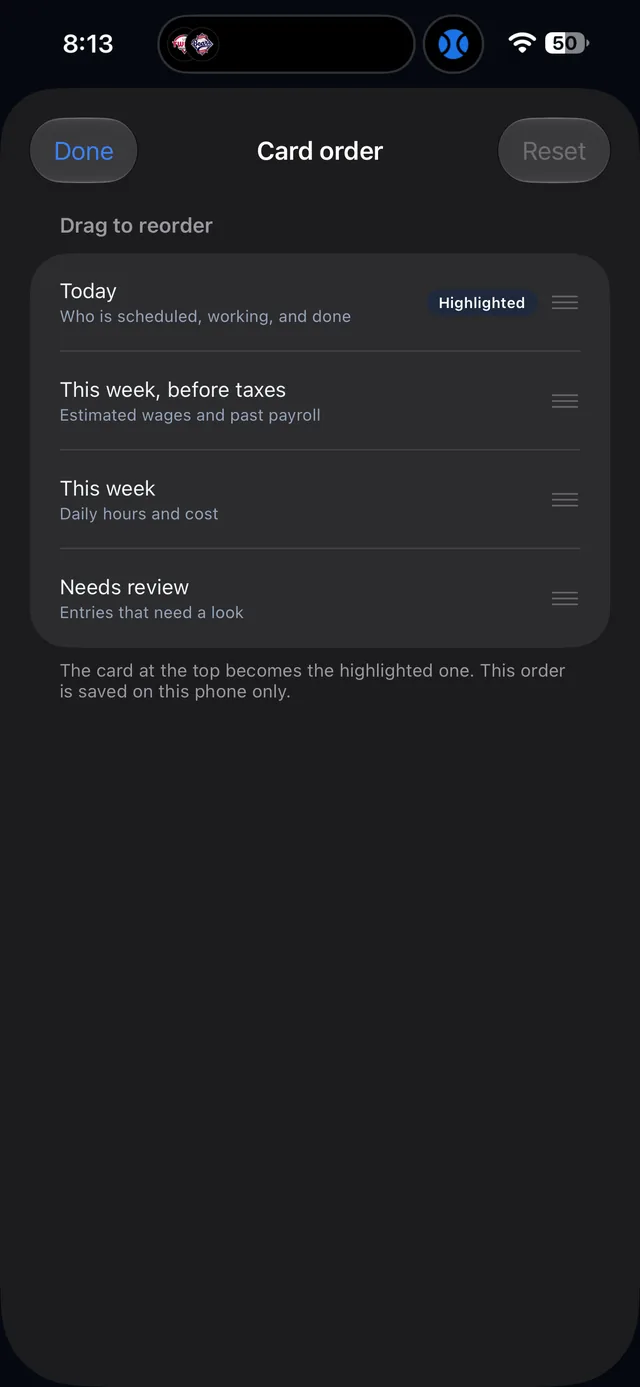
카드 순서 바꾸기Card order

⋯ 메뉴의 Card order에서 홈 카드를 드래그해 순서를 바꿀 수 있습니다. 맨 위에 둔 카드가 강조 표시되며, 이 순서는 해당 휴대폰에만 저장됩니다.Card order in the ⋯ menu lets you drag the home cards into any order. The top card becomes the highlighted one, and the order is saved on that phone only.
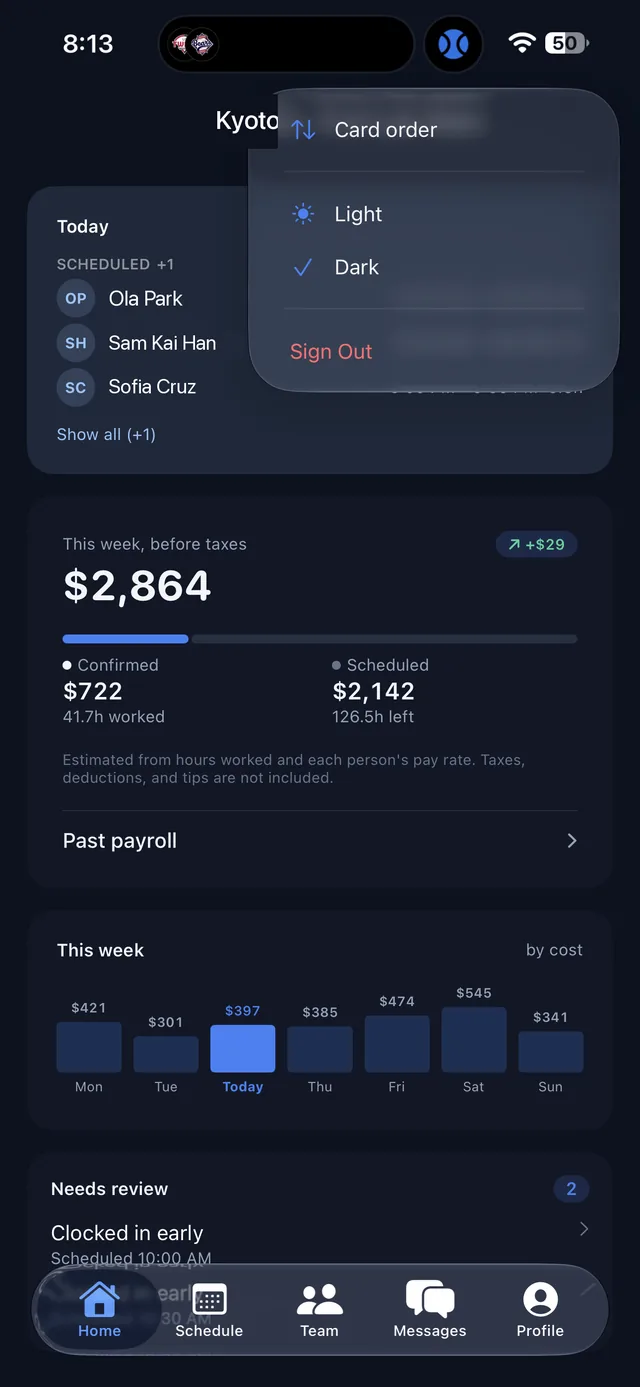
Home screen with the ⋯ menu open
⋯ 메뉴The ⋯ menu
Card order screen
카드 순서 변경Card order

요일을 누르면 그날의 상세가 열립니다Tap a day for its detail

지난 요일은 Actual(실제 발생한 인건비)과 Planned(계획)을 나란히 보여 주고, 오늘과 앞으로의 요일은 계획 금액과 예정 근무자를 보여 줍니다. 이름 앞의 색 점은 역할 구분입니다.Past days show Actual next to Planned. Today and upcoming days show the planned amount and who is scheduled. The colored dot before each name marks the role.
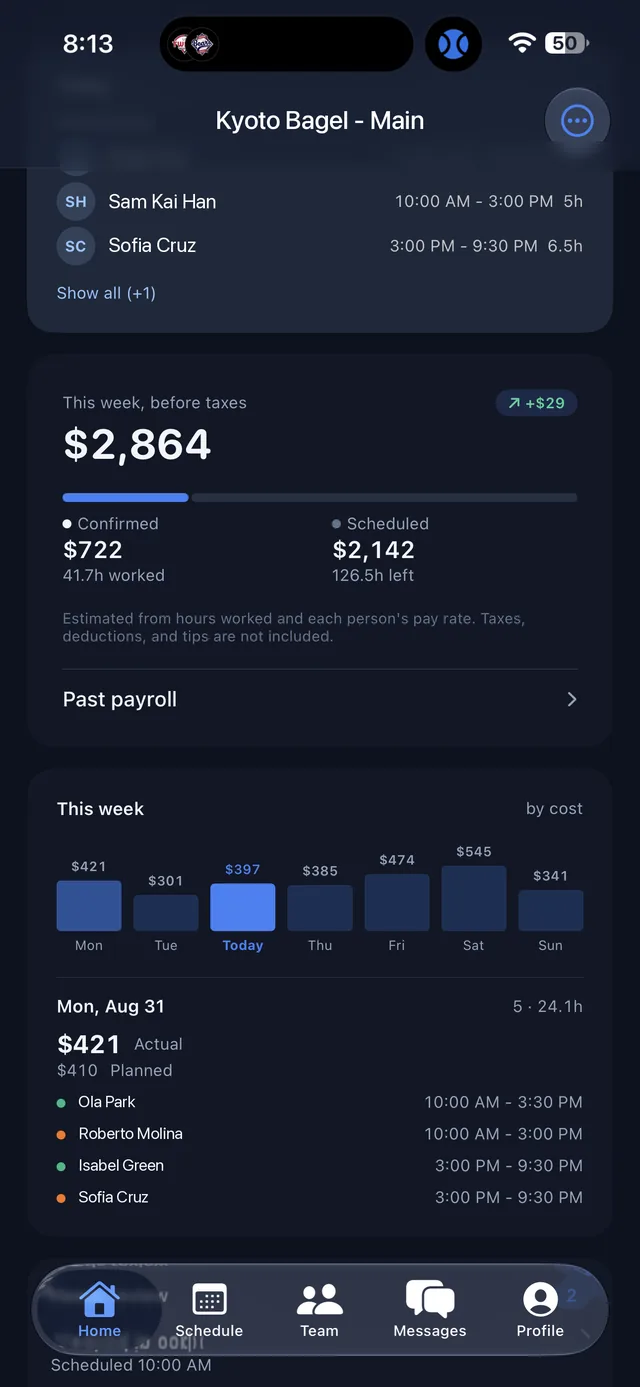
Home screen showing Monday's actual and planned labor cost
지난 요일: Actual vs PlannedA past day: actual vs planned
Home screen showing today's planned labor cost
오늘: 계획과 예정 근무자Today: plan and who is scheduled
Home › Past payroll

지난 급여 내역 AdminPast payroll Admin

주 단위로 정리된 급여One card per pay week

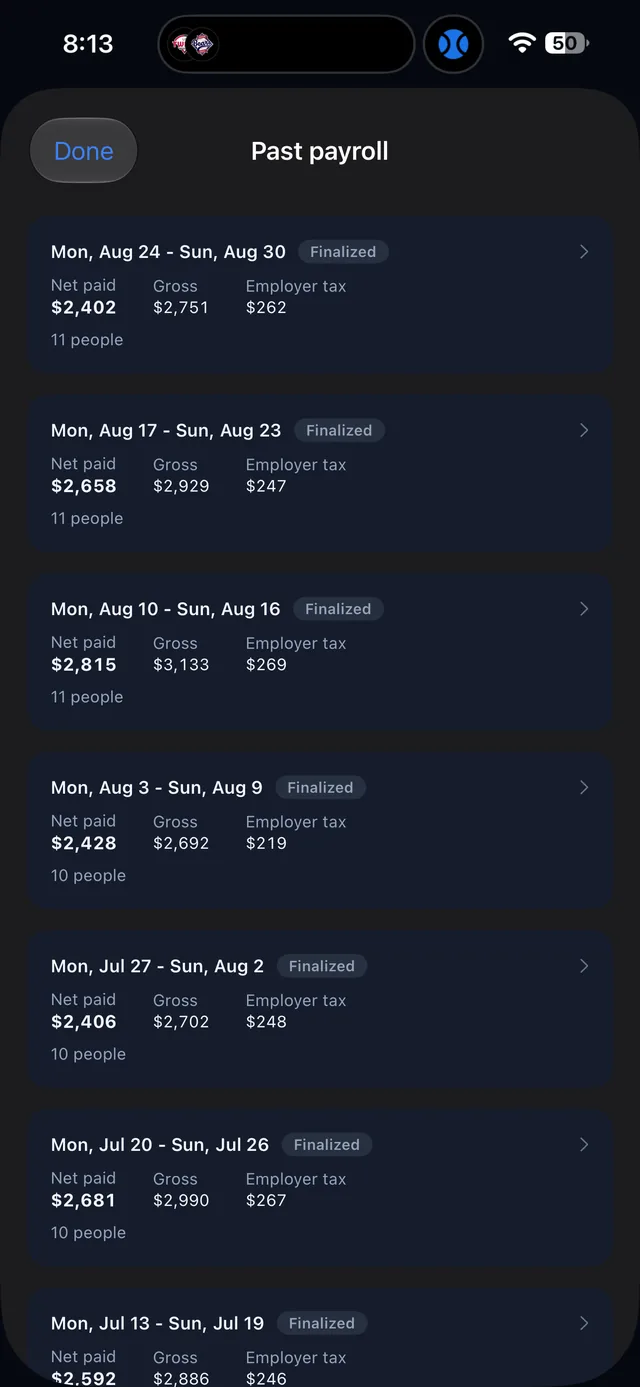
홈의 Past payroll을 누르면 마감된 주가 최근 순으로 나열됩니다. 각 카드에는 기간, Finalized(마감 완료) 상태, 실지급액(Net paid), 총급여(Gross), 고용주 세금(Employer tax), 인원 수가 표시됩니다. 카드를 누르면 사람별 상세를 볼 수 있습니다.Past payroll lists finalized weeks, newest first. Each card shows the period, its Finalized status, net paid, gross, employer tax, and headcount. Tap a card for the per-person breakdown.

급여 실행과 세금 신고는 지금처럼 웹 관리자 페이지의 Payroll 메뉴에서 진행합니다. 앱에서는 결과를 확인하는 용도입니다.Running payroll and filing taxes still happens in the Payroll menu on the web dashboard. The app is for checking the results.
Past payroll list
Past payroll
Home › Needs review

출퇴근 기록 확인하기Reviewing a time entry

왜 확인이 필요한지 먼저 보입니다The reason comes first

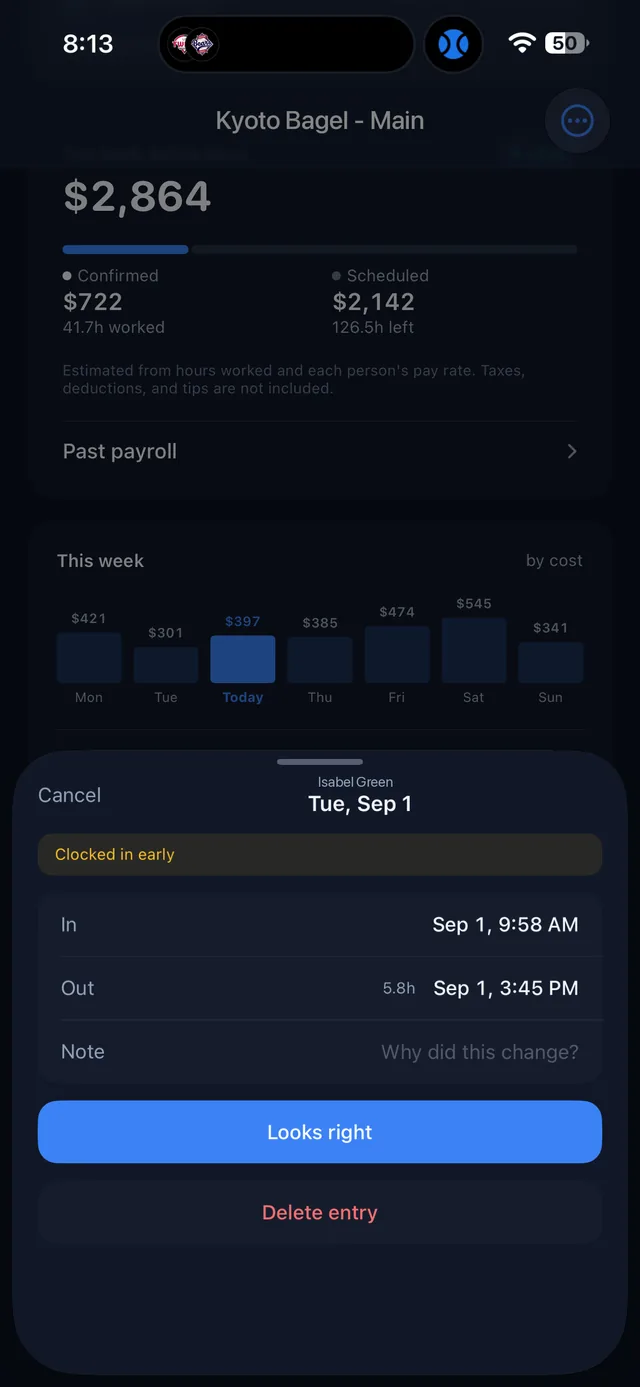
상단 배지에 Clocked in early(일찍 출근)처럼 이 기록이 올라온 이유가 표시됩니다. 그 아래 InOut에 실제 찍힌 시간과 총 근무 시간이 있습니다.The badge at the top says why the entry is here, for example Clocked in early. Below it, In and Out show the actual times and total hours.

그대로 승인하거나 시간을 고치거나Approve as is, or fix the times

기록이 맞다면 Looks right를 누르세요. 시간을 바꿔야 하면 In 또는 Out을 눌러 수정하고, Note에 왜 바꿨는지 짧게 남기면 나중에 급여 확인 때 도움이 됩니다. 잘못 찍힌 기록은 Delete entry로 지울 수 있습니다.If it is correct, tap Looks right. To change a time, tap In or Out, and leave a short Note on why. A bad entry can be removed with Delete entry.

Time entry review sheet
근태 기록 확인 화면Time entry review
Schedule

스케줄 보고 바로 고치기See the schedule and fix it on the spot

요일별 카드One card per day

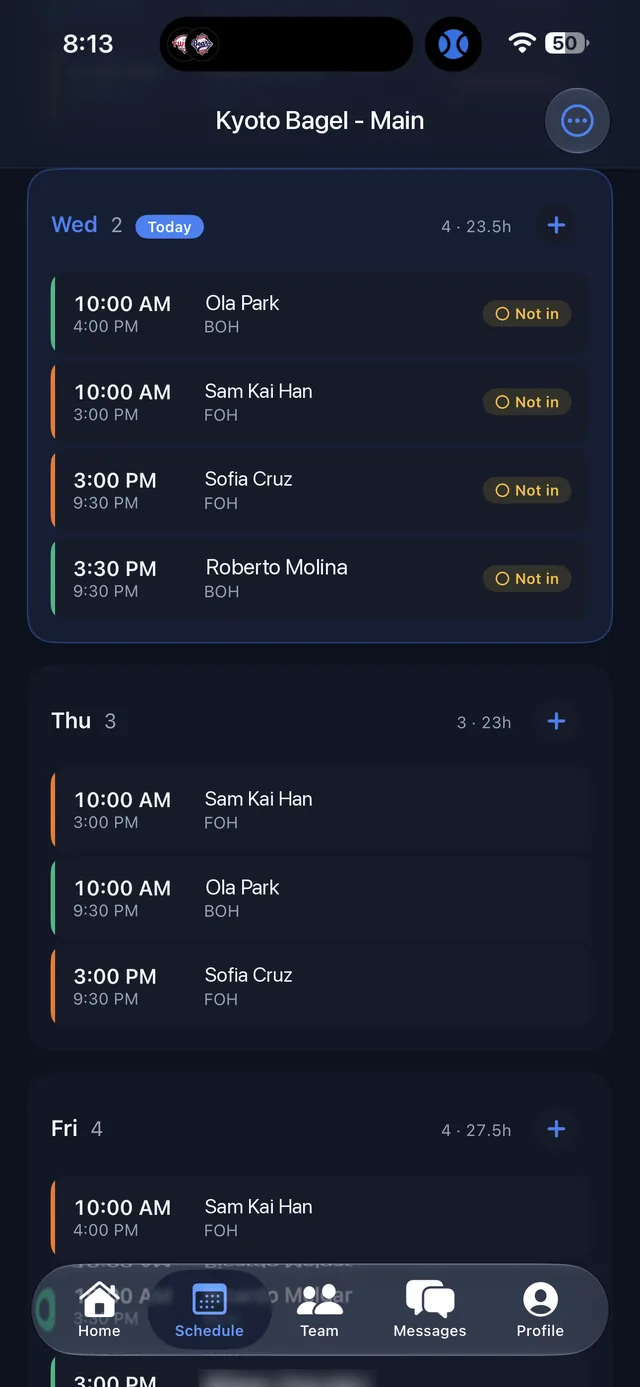
요일 헤더에 그날 근무 인원과 총 시간이 나오고, 오늘은 Today 배지로 표시됩니다. 각 줄은 시작·종료 시간, 이름, 역할(FOH, BOH 등)이고, 오늘 근무자는 오른쪽에 Not in(아직 미출근) 같은 출근 상태가 붙습니다. 왼쪽 색 막대는 역할 구분입니다.Each day header shows headcount and total hours, and today carries a Today badge. Every row lists start and end, name, and role (FOH, BOH). Today's rows also show clock-in status such as Not in. The colored bar on the left marks the role.

근무 추가와 수정Add and edit shifts

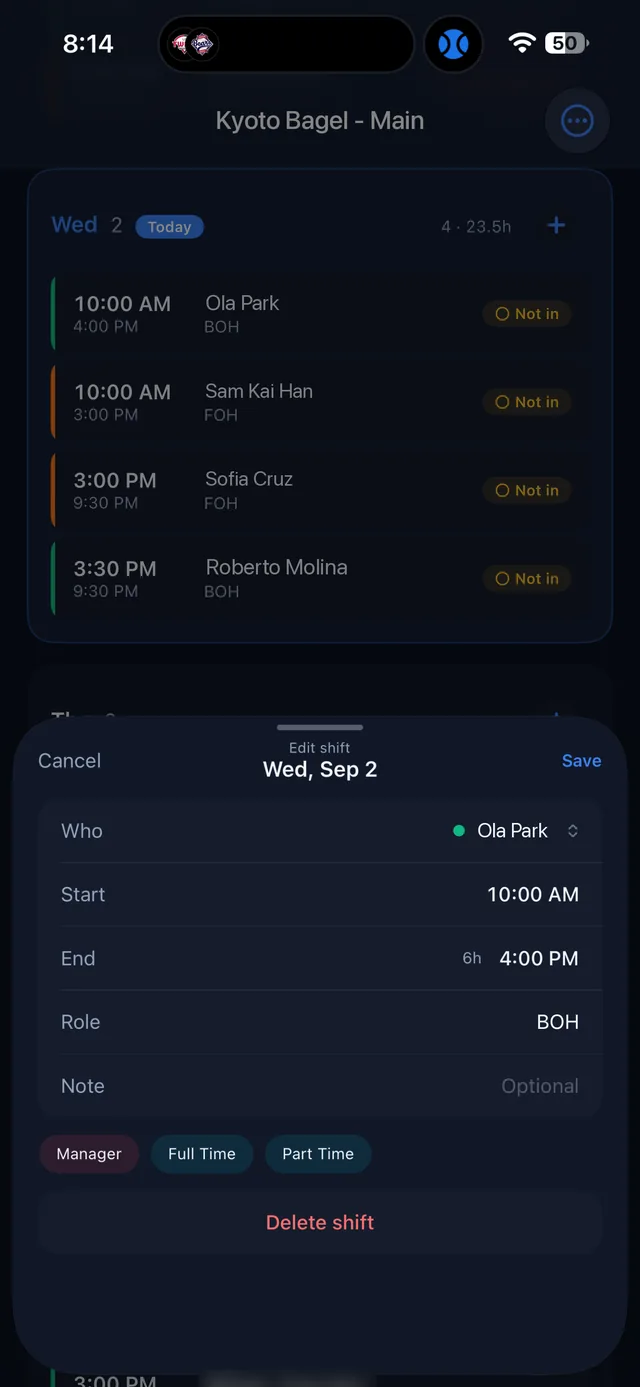
요일 옆 +를 누르면 새 근무가, 기존 근무를 누르면 편집 시트가 열립니다. Who에서 사람을 고르고 StartEnd를 정하면 총 시간이 자동으로 계산됩니다. RoleNote는 선택 사항입니다. 하단의 Manager, Full Time, Part Time 칩은 직책별 구분이고, Delete shift로 근무를 삭제합니다. 다 되면 Save를 누르세요.Tap + next to a day to add a shift, or tap an existing shift to edit it. Pick the person under Who, set Start and End, and the total is calculated for you. Role and Note are optional. The Manager, Full Time, and Part Time chips group people by position, and Delete shift removes the shift. Tap Save when done.

앱에서 저장한 변경은 직원용 Simplin 앱과 웹 관리자 페이지에 바로 반영됩니다. 주 단위 스케줄을 처음 만들고 발행(Publish)하는 작업은 웹에서 하는 것이 편합니다.Changes saved here show up right away in the Simplin employee app and on the web dashboard. Building and publishing a full week is still easiest on the web.
Schedule tab, week view
주간 스케줄Week view
Edit shift sheet
근무 편집Edit shift

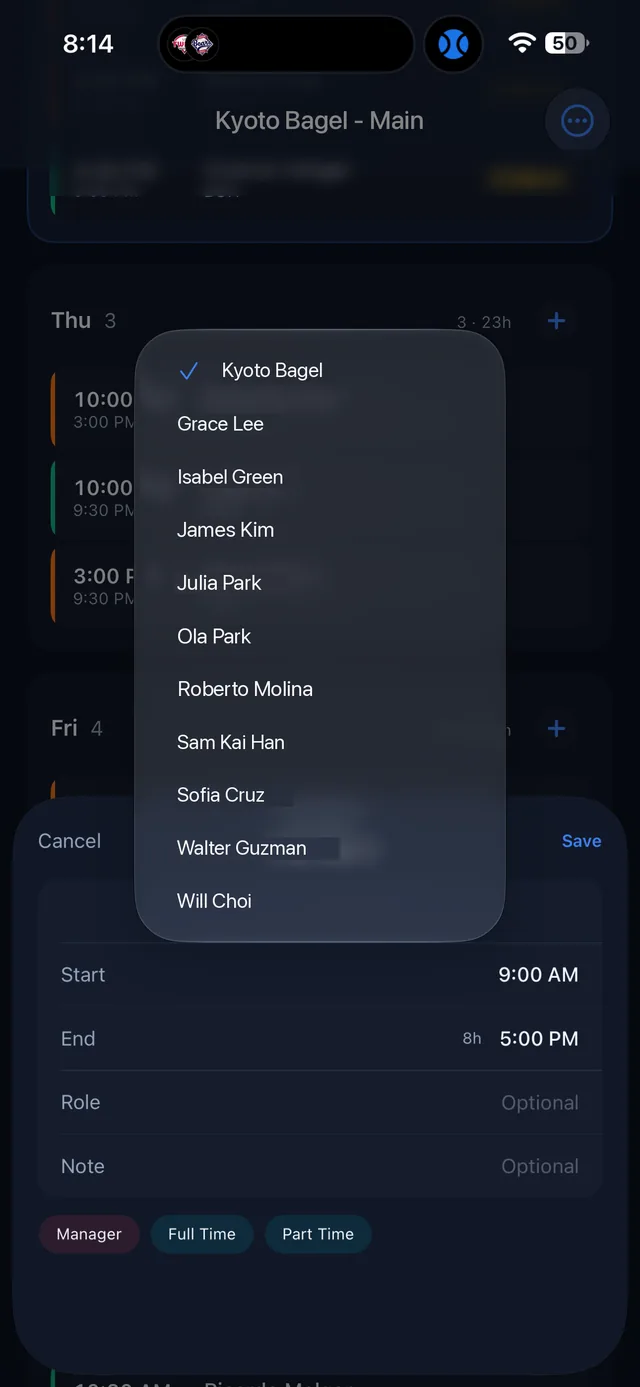
Who: 근무자 고르기Who: picking the person

Who를 누르면 이 매장의 활성 직원 목록이 열립니다. 이름을 누르면 바로 선택됩니다. 새 근무를 만들 때는 맨 위의 매장 이름이 기본으로 선택되어 있으니 꼭 사람을 골라 주세요.Tap Who to open the list of active staff for this store. Tap a name to assign the shift. A new shift starts with the store name selected at the top, so make sure to pick a person.

Who picker listing staff
근무자 선택Who picker
Team

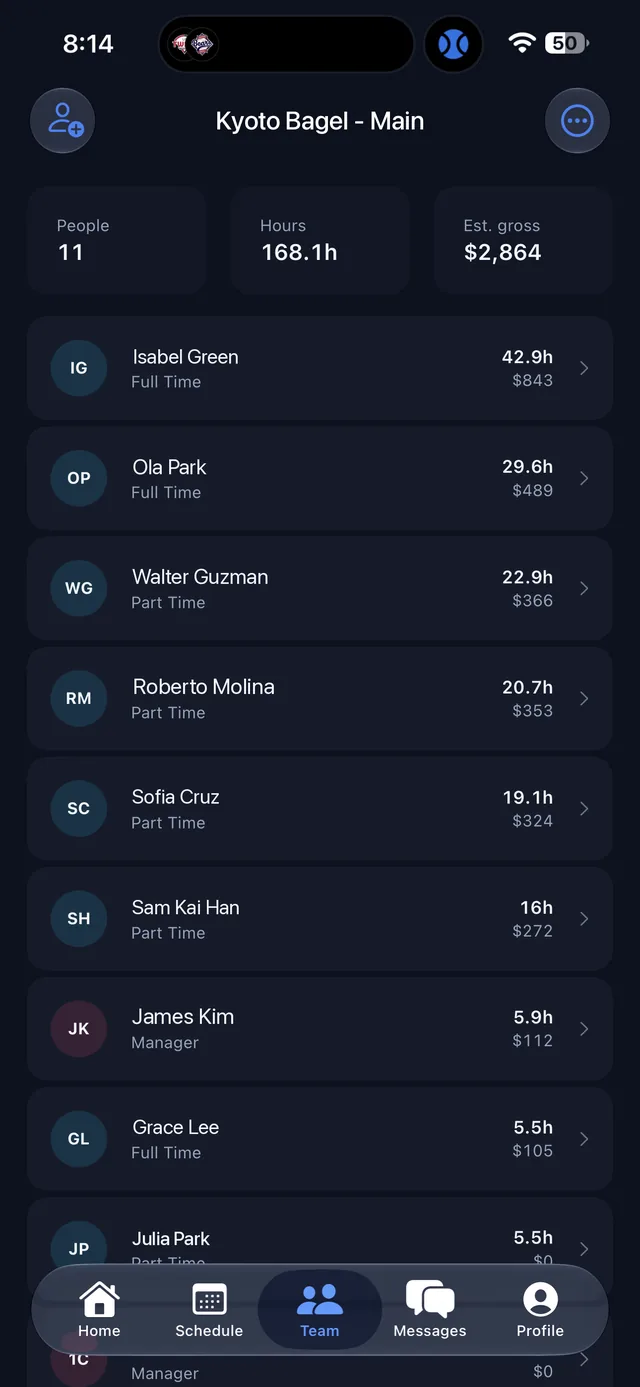
팀원별 시간과 급여Hours and pay by person

이번 주 요약This week's summary

상단에 이번 주 People(인원), Hours(총 근무 시간), Est. gross(예상 총급여)가 있습니다. 목록에는 이름, 직책, 이번 주 시간이 보이고 시간이 많은 순으로 정렬됩니다. 왼쪽 위 아이콘으로 직원을 새로 추가할 수 있습니다.The top shows this week's People, Hours, and Est. gross. The list shows name, position, and hours this week, sorted by hours. The icon at the top left adds a new person.

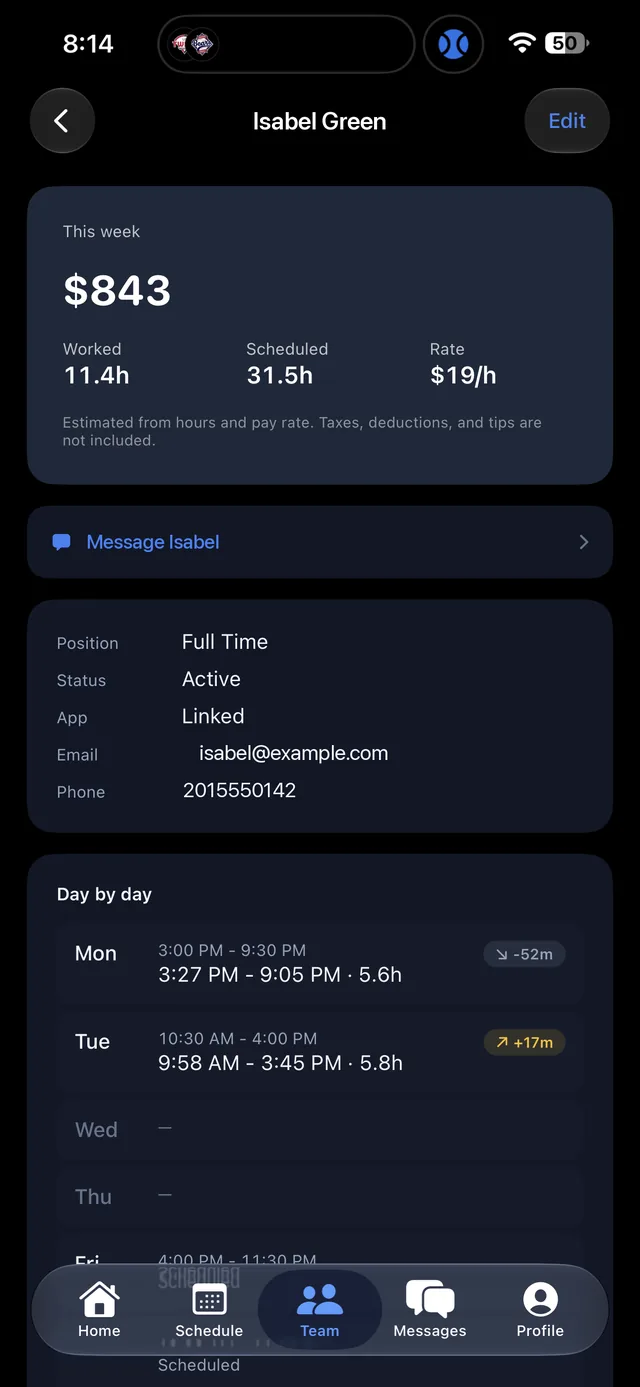
사람을 누르면 상세가 열립니다Tap a person for detail

이번 주 예상 급여와 Worked(근무), Scheduled(예정), Rate(시급)가 맨 위에 있고, Message로 바로 1:1 대화를 시작할 수 있습니다. 그 아래 직책, 상태, 앱 연결 여부, 이메일, 전화번호가 있고 오른쪽 위 Edit으로 수정합니다.Estimated pay for the week sits on top with Worked, Scheduled, and Rate, and Message starts a direct chat. Below are position, status, app link status, email, and phone, editable via Edit.

Day by day

요일마다 예정 시간(회색)과 실제 찍힌 시간(흰색)이 나란히 보이고, 오른쪽 배지가 차이를 알려 줍니다. -52m은 예정보다 52분 적게, +17m은 17분 더 일했다는 뜻입니다.Each day shows the scheduled time in grey and the actual clocked time in white, with a badge for the difference: -52m means 52 minutes under schedule, +17m means 17 minutes over.

시급과 예상 급여 금액은 Admin 권한에서만 보입니다. Manager 권한은 시간만 봅니다.Pay rates and dollar amounts appear for Admin only. Managers see hours.
Team tab listing staff
팀 목록Team list
Team member detail
팀원 상세Person detail
Messages

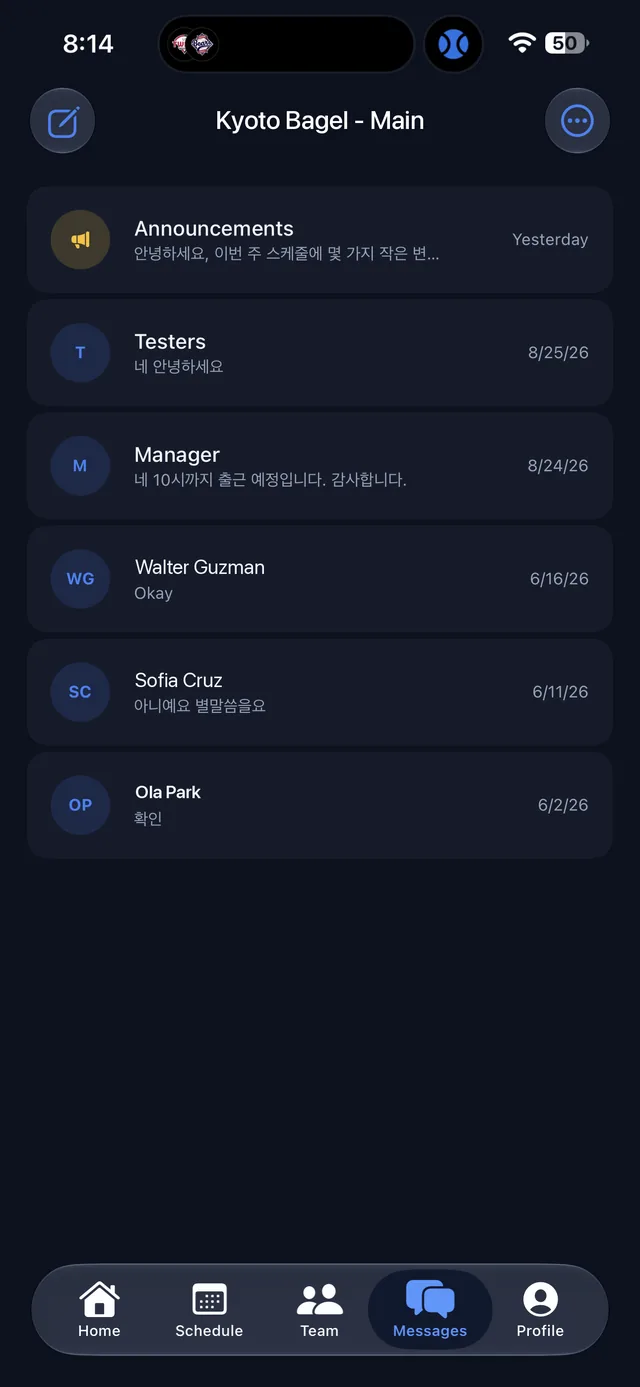
공지, 그룹, 1:1 대화Announcements, groups, and direct messages

대화 목록Conversation list

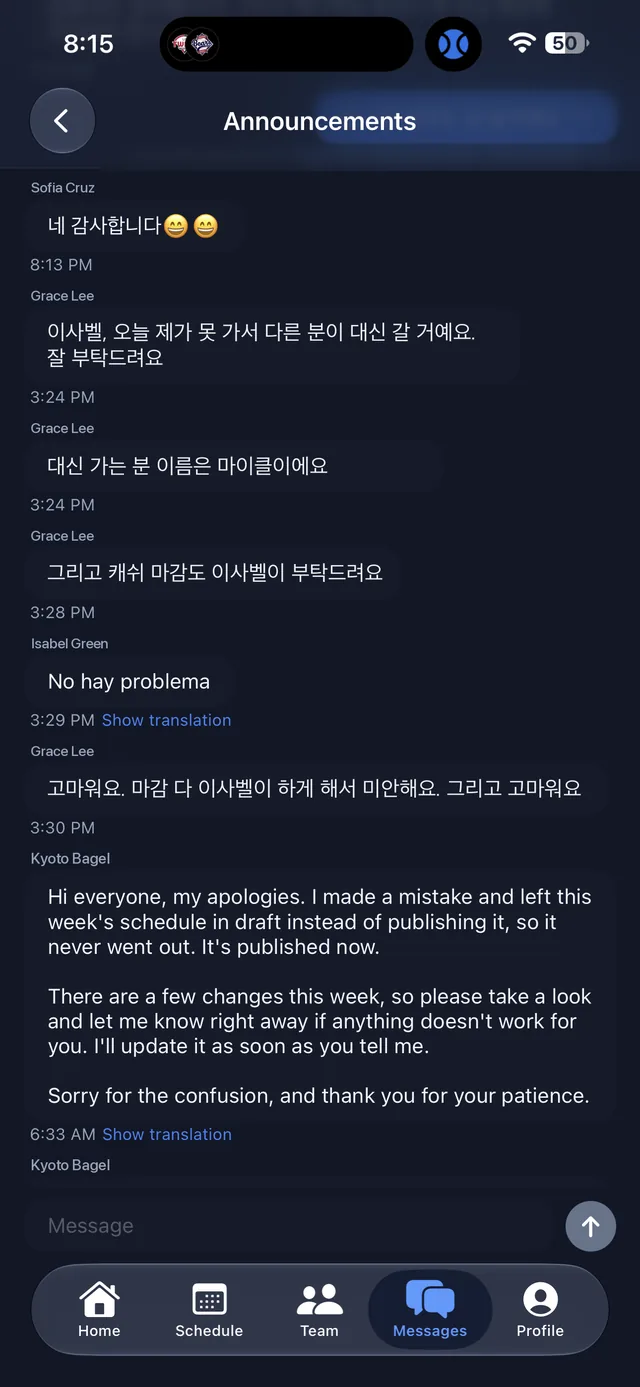
Announcements는 매장 전체에 보내는 공지 채널이고, 그 아래로 그룹 대화와 직원과의 1:1 대화가 최근 순으로 나열됩니다. 왼쪽 위 아이콘으로 새 대화를 시작합니다.Announcements is the store-wide channel. Group chats and direct messages with staff follow, newest first. The icon at the top left starts a new conversation.

각자의 언어로 자동 번역Translated into each person's language

메시지는 받는 사람이 자기 Simplin 앱에서 설정한 Preferred Language(선호 언어)로 자동 번역되어 도착합니다. 매니저가 한국어로 보내면 스페인어를 쓰는 직원에게는 스페인어로 보이는 식입니다. 번역된 메시지 아래의 링크를 누르면 원문을 볼 수 있습니다. 공지 아래에는 읽은 사람 수가 표시됩니다.Every message is translated automatically into the Preferred Language each person set in their own Simplin app. A message written in Korean reaches a Spanish-speaking employee in Spanish. The link under a translated message shows the original. Announcements show how many people have read them.

Messages tab, conversation list
대화 목록Conversations
Announcements chat with automatic translation
공지 채널Announcements
Profile

계정, 알림, 지원Account, notifications, and support

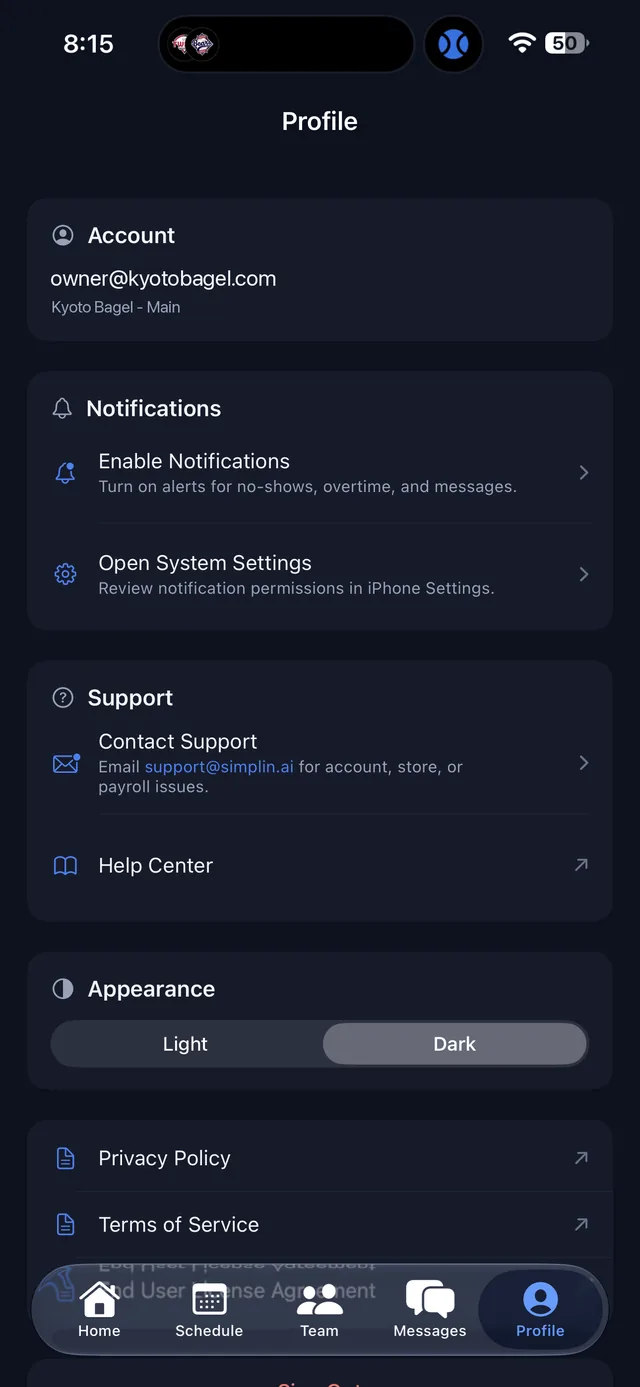
Account

로그인한 이메일과 현재 매장이 표시됩니다.The signed-in email and the current store.

Notifications

Enable Notifications를 켜면 무단결근(no-show), 초과근무, 새 메시지 알림을 받습니다. 휴대폰 설정에서 권한을 다시 확인하려면 Open System Settings를 누르세요.Turn on Enable Notifications to get alerts for no-shows, overtime, and new messages. Open System Settings takes you to the phone's permission screen.

Support · Appearance

계정, 매장, 급여 문의는 support@simplin.ai로 보내 주시고, Help Center에서 도움말을 볼 수 있습니다. Light / Dark로 화면 테마를 바꾸고, 맨 아래 Sign Out으로 로그아웃합니다.Email support@simplin.ai for account, store, or payroll questions, or open the Help Center. Switch the theme with Light / Dark, and sign out at the bottom.

Profile tab
Profile

자주 묻는 질문Frequently asked questions

로그인이 안 되거나 매장이 보이지 않아요.I can't sign in, or no store shows up.
오너가 웹 관리자 페이지의 Employees에서 해당 직원의 Manager App Access를 Manager 또는 Admin으로 바꾸고 저장해야 합니다. 저장 뒤 앱에서 로그아웃했다가 다시 로그인해 보세요.The owner needs to set Manager App Access to Manager or Admin for that person under Employees on the web dashboard and save. Then sign out of the app and back in.
매니저는 직원용 Simplin 앱도 계속 써야 하나요?Do managers still need the Simplin employee app?
네. 본인의 출퇴근 기록은 직원용 Simplin 앱(파란 아이콘)에서 NFC 태그로 찍습니다. Simplin Manager는 매장을 관리하는 용도입니다.Yes. Managers clock their own hours with the blue Simplin employee app and the NFC tag. Simplin Manager is for running the store.
Manager와 Admin 중 무엇을 줘야 하나요?Should I give Manager or Admin?
시급, 인건비, 급여 내역을 보여도 되는 사람에게만 Admin을 주세요. 스케줄 관리와 팀 소통만 맡기는 매니저에게는 Manager로 충분합니다. 언제든 웹에서 바꿀 수 있습니다.Give Admin only to people who may see pay rates, labor cost, and payroll. Manager is enough for someone who handles schedules and team communication. You can change it on the web at any time.
매장이 여러 개인데 앱에서 바꿀 수 있나요?I manage several businesses. Can I switch in the app?
네. 화면 맨 위의 비즈니스 이름을 누르면 내가 관리자로 지정된 다른 비즈니스 목록이 나옵니다. 원하는 비즈니스를 고르면 홈, 스케줄, 팀, 메시지가 모두 그 비즈니스 기준으로 바뀝니다. 목록에 없는 비즈니스는 해당 매장의 오너가 Employees에서 Manager App Access를 지정해 주어야 나타납니다.Yes. Tap the business name at the top of the screen to see the other businesses where you have been set as a manager or admin. Pick one and Home, Schedule, Team, and Messages all switch to that business. A business that is missing from the list needs its owner to grant Manager App Access under Employees.
앱의 숫자와 웹의 숫자가 다르게 보여요.The numbers in the app and on the web don't match.
앱의 급여 숫자는 근무 시간과 시급으로 계산한 세전 추정치이며 세금, 공제, 팁이 빠져 있습니다. 확정 금액은 웹의 Payroll 메뉴와 Past payroll의 Finalized 내역을 기준으로 보세요.The app's pay figures are pre-tax estimates from hours and pay rate, without taxes, deductions, or tips. For final amounts, use the Payroll menu on the web and the Finalized entries under Past payroll.

준비됐나요? 지금 설치하세요.Ready? Install it now.

권한을 지정했다면 휴대폰에서 Simplin Manager를 받고 기존 계정으로 로그인하면 됩니다. 막히는 부분이 있으면 언제든 알려 주세요.Once access is granted, download Simplin Manager on your phone and sign in with your existing account. If anything gets in the way, let us know.